Get started in 15 minutes
Create your figure, connect your Telegram bot and channels, and send yourself a test post.
VelocityBot works through your own Telegram bot. The bot welcomes new people, takes payments in Telegram Stars, lets paying members into your private channel and posts to your channels for you. This guide takes you from your first sign-in to a working setup — it usually takes about fifteen minutes.
What you need: the Telegram app on your phone or computer, and the e-mail with your sign-in details that arrived after you ordered. Everything else you create along the way.
The setup wizard
After your first sign-in, VelocityBot opens a short wizard with three steps. You can leave at any time: when you come back, it continues where you stopped.
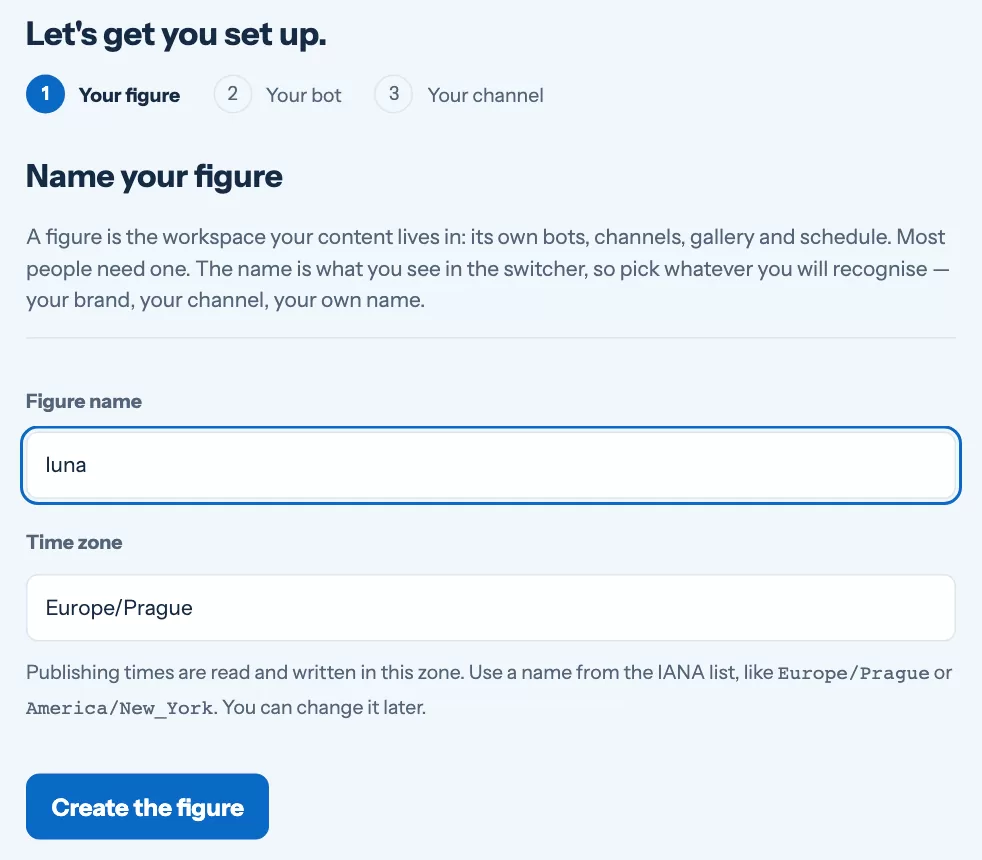
- Name your figure A figure is the name you publish under — you, your brand or your project. Pick the name your fans know and your time zone. All times in VelocityBot (scheduled posts, reports, reminders) use this time zone.
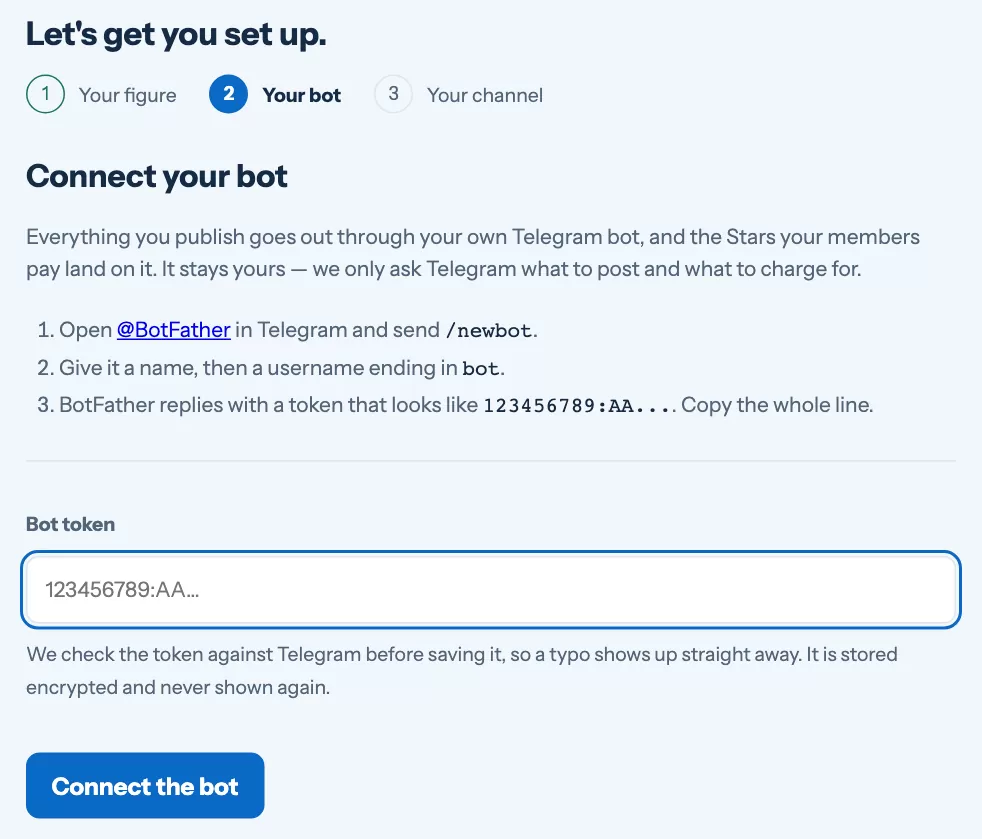
- Connect your bot Your figure needs its own bot. You create it in Telegram with @BotFather — the official Telegram bot for making bots — and paste its token into VelocityBot.
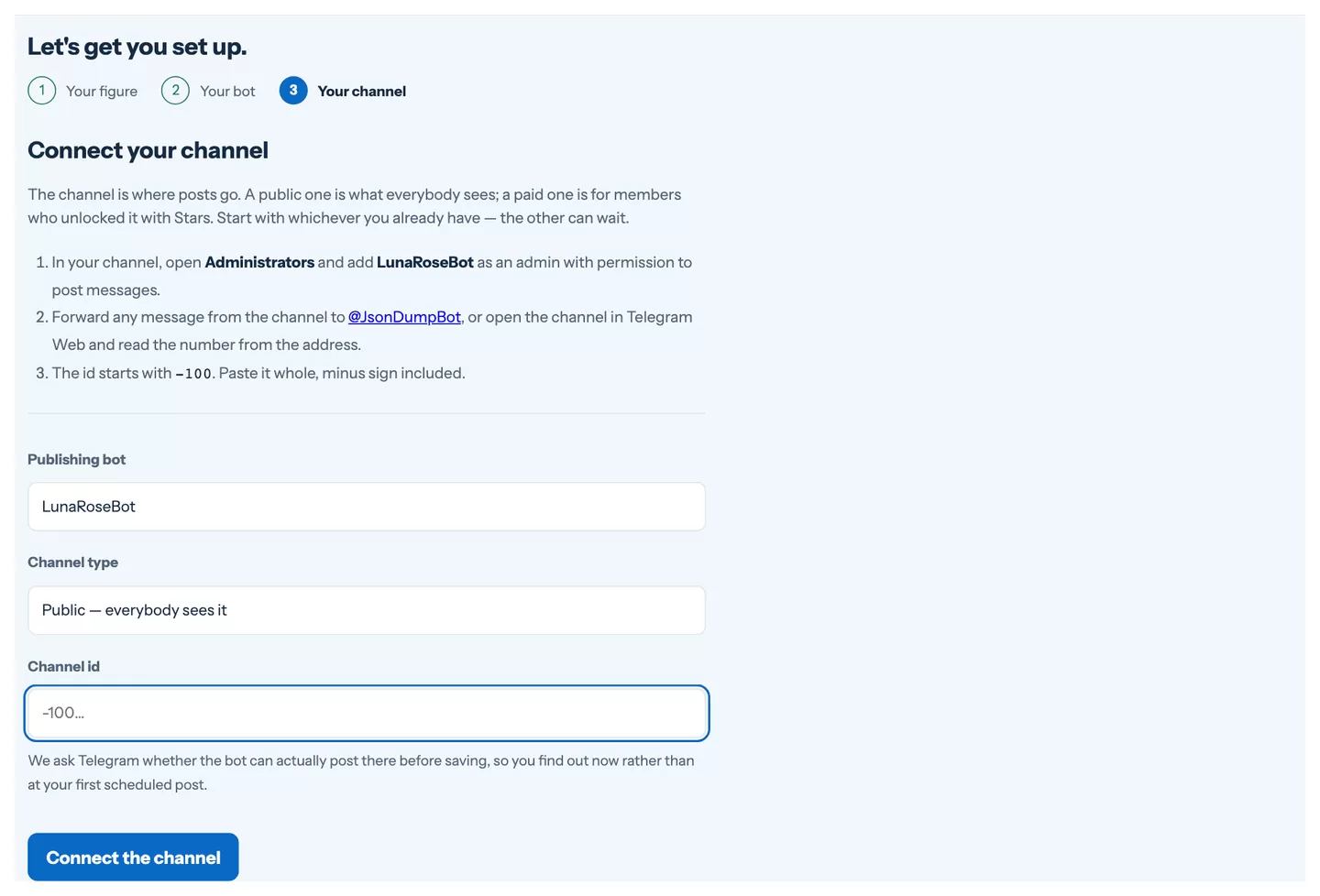
- Connect your channel Add the bot to your channel as an administrator and tell VelocityBot the channel's ID. Most creators have two channels: a paid channel for members and a free public channel (your shop window).
Create your bot with BotFather
- Open @BotFather in Telegram Search for
@BotFatherand check it has the blue tick. - Send /newbot BotFather asks for a display name (for example Luna Rose) and then a username that ends in bot (for example
LunaRoseBot). - Copy the token BotFather replies with a long code like
123456789:AAH…. That is the token — paste it into the wizard and press Connect the bot.
Keep the token secret. Anyone with the token can control your bot. If it ever leaks, send /revoke to BotFather and replace the token under Settings › Bots.
Connect your channels
For each channel — the paid one and the public one — do the same:
- Add the bot as an administrator In the channel open Administrators → Add admin, find your bot and allow it to post messages. In the paid channel also allow invite users via link and ban users — that is how the bot lets paying members in and removes them when their access ends.
- Find the channel ID Forward any message from the channel to
@JsonDumpBotin Telegram, or open the channel in Telegram Web and read the number from the address. The ID starts with-100— paste it whole, minus sign included. - Choose what the channel is for Paid channel for members, public channel for free posts and promotion. Then press Connect the channel.
You can add or change channels later under Settings › Channels, and edit the bot's description — what people see before they press Start — under Settings › Bots.
Finish your figure settings
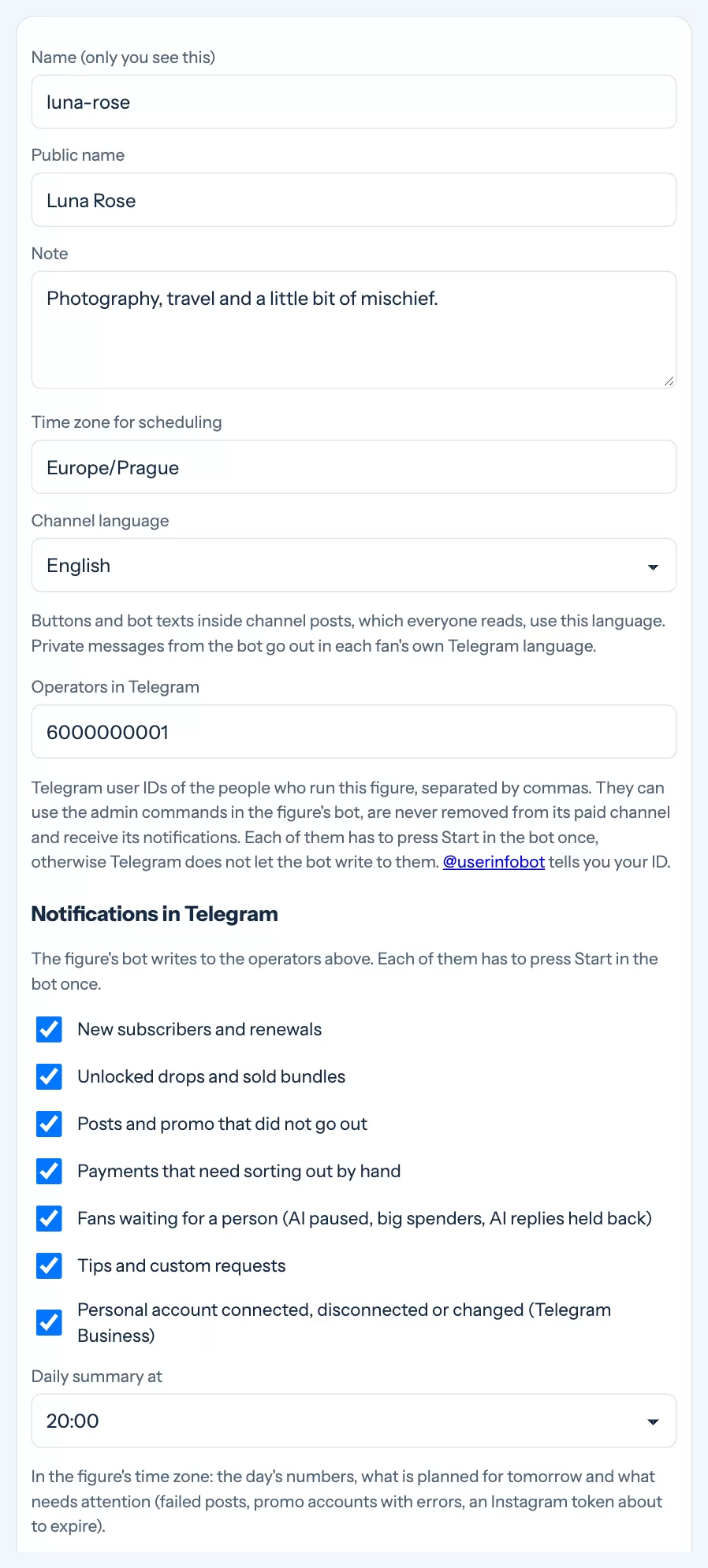
Open Settings › Figures. Three things are worth setting right away:
- Operators in Telegram — your Telegram user ID (and those of your team). Operators get notifications from the bot, can use its admin commands and are never removed from the paid channel.
- Notifications in Telegram — choose what the bot tells you: new subscribers, sales, a fan waiting for a person, problems with posts. The daily summary arrives at the hour you choose.
- Channel language — the language your bot uses in the channel and for messages it writes on its own.
Not sure what your Telegram ID is? Send /start to @userinfobot in
Telegram — it replies with your numeric ID.
Check that everything works
- Start your own bot Open your bot in Telegram and press Start. A bot can only write to people who started it — you included.
- Save a test post In Posts write a short post and press Save as draft.
- Press Send test on the post's card in the list. The bot sends the post to the operators in a private chat, exactly as the channel would get it.
If it arrives, you are ready to publish — continue with Posts and the calendar.
Still stuck?
Write to us and a person will answer — usually within a working day. Tell us which figure and which page it is about.