The inbox and your AI assistant
Answer fans from one place, let the AI reply or draft for you, and step in whenever a person should.
Every private message a fan sends your bot lands in Content › Inbox, together with what the AI answered. You can let the AI keep the conversation going around the clock, answer yourself whenever you like, and step in completely for the fans who should talk to a person.
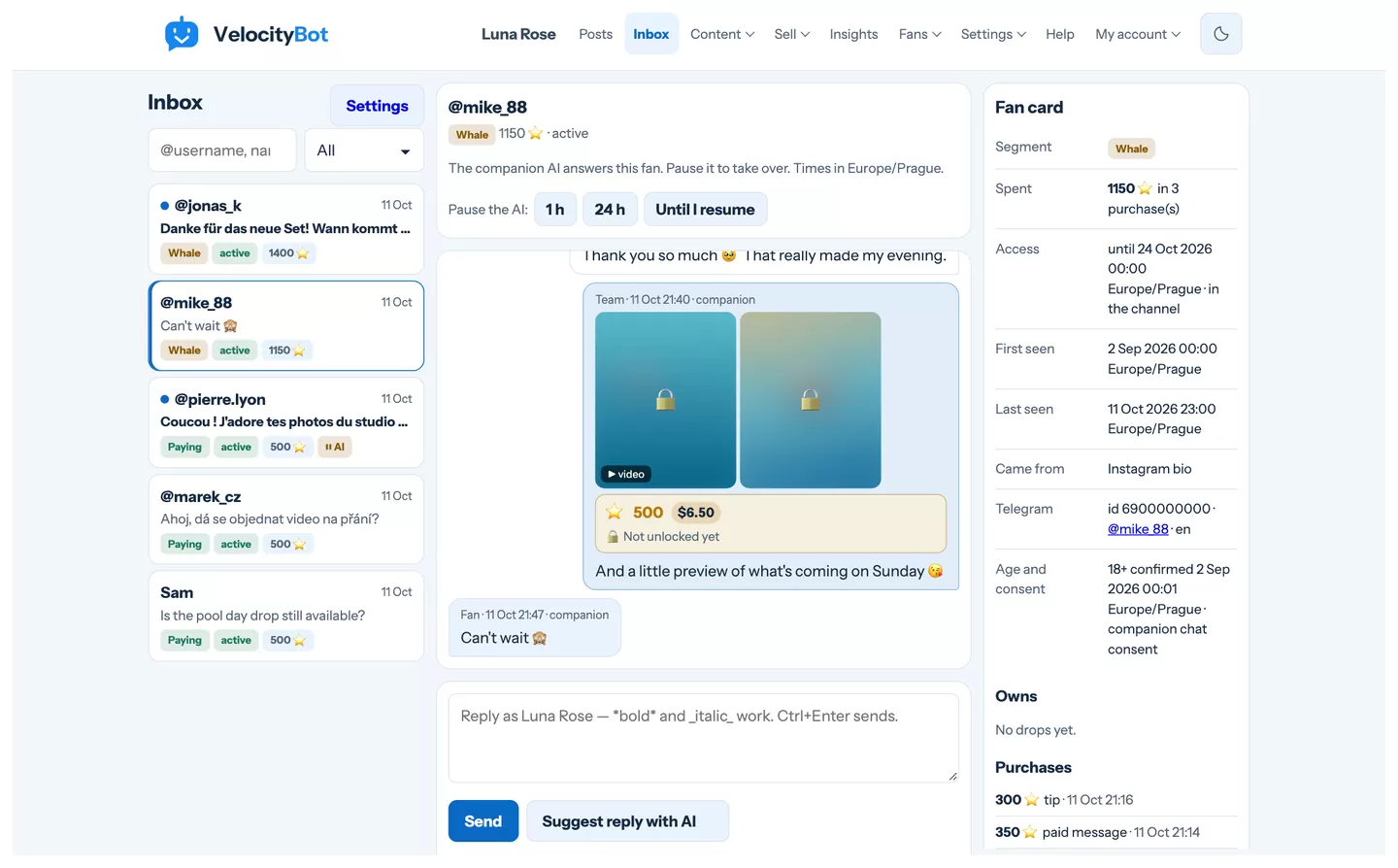
Conversations
The newest conversations are at the top. A blue dot marks messages nobody has read yet, and the badges show the fan's segment, whether they have access, how much they spent and whether the AI is paused for them. Search by @username, name or Telegram ID; the filter shows only unread chats or chats with the AI paused.
Reply
- Write and send — your reply goes from the bot, as your figure. Ctrl + Enter sends.
- Suggest reply with AI — the AI drafts an answer in your figure's voice. It only fills the field; nothing goes out until you press Send.
- Offer a paid drop — sends a drop with its unlock button. The chat shows the price, and once the fan pays, when they unlocked it. A fan who already owns the drop cannot be charged for it again.
The chat also shows the photos and videos you exchanged and every tip — in Stars with what it earns you in dollars.
Who answers: the AI or a person
The AI answers fans by itself. Which AI depends on the fan: someone who agreed to a companion chat gets your figure's personal assistant; everyone else gets a support assistant that helps with plans, payments and access. You set their voice under Fans › AI prompts (see Fans, segments and your AI's voice).
- Pause the AI for one fan — for 1 hour, 24 hours or until you resume. Their messages wait in the inbox and you answer yourself.
- Big spenders to a person — under Fans › AI hand-over & words choose a total spend from which the AI no longer answers. Those fans always get a human.
- When a fan is waiting for a person, your bot tells the operators in Telegram (if that notification is on under Settings › Figures).
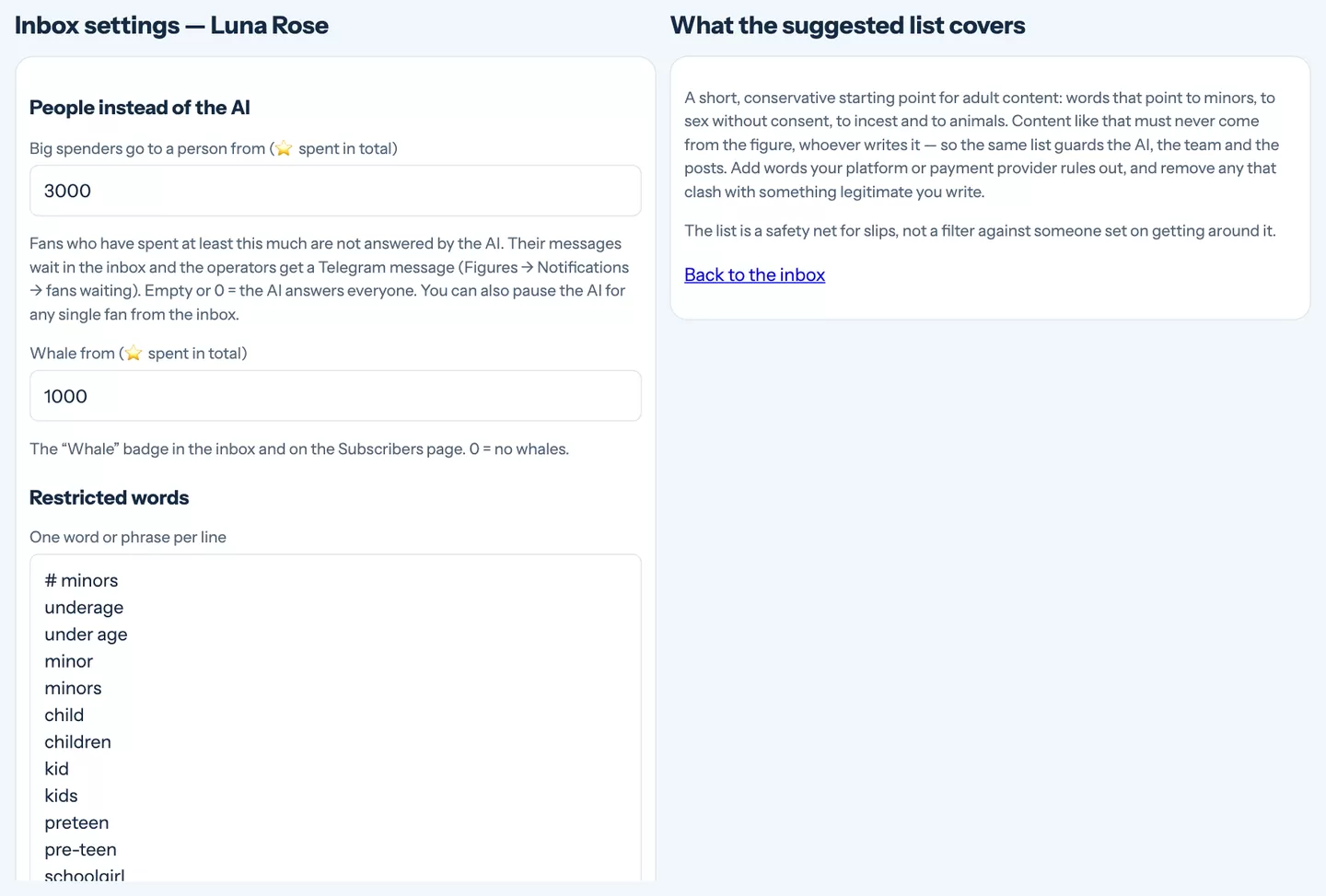
Restricted words
On the same page keep a list of words your figure must never use — one per line. Insert suggested list adds a short, conservative starting list for adult content. A reply that contains one is stopped: from the AI it is held back (the fan gets a neutral line, you get a note), from your team it is not sent, and broadcasts and post captions with it cannot be saved.
The fan card
Next to the chat you see who you are talking to: their segment, lifetime spend, every purchase by name (subscriptions, drops, tips, bundles, custom requests), what they already own, where they came from and who invited them, when they were first and last seen, and their age and consent status. Add notes and tags — only your team sees them, and you can filter subscribers by tag.
Your personal Telegram account
Fans who write to your personal Telegram account can appear in the inbox too, through Telegram Business (it needs Telegram Premium). Open Fans › AI hand-over & words and follow Telegram Business settings:
- Add your Telegram ID to Operators in Telegram of your figure.
- In Telegram go to Settings → Telegram Business → Chatbots and add your figure's bot.
- Choose which chats it may see — Exclude my contacts keeps friends and family out.
- Allow it to reply to messages, otherwise you can read but not answer.
These chats carry the label Personal account, and your replies go out in your name. The AI answers there only if you switch it on. Telegram lets a bot reply only within 24 hours of the fan's last message.
Still stuck?
Write to us and a person will answer — usually within a working day. Tell us which figure and which page it is about.