How can we help?
Step-by-step guides with pictures of the screens you will see. New here? Start at the top — or search for what you need.
Nothing found. Try a different word — or write to us below.
Getting started
Create and publish
Sell
Fans and conversations
Grow and protect
VelocityBot works through your own Telegram bot. The bot welcomes new people, takes payments in Telegram Stars, lets paying members into your private channel and posts to your channels for you. This guide takes you from your first sign-in to a working setup — it usually takes about fifteen minutes.
What you need: the Telegram app on your phone or computer, and the e-mail with your sign-in details that arrived after you ordered. Everything else you create along the way.
The setup wizard
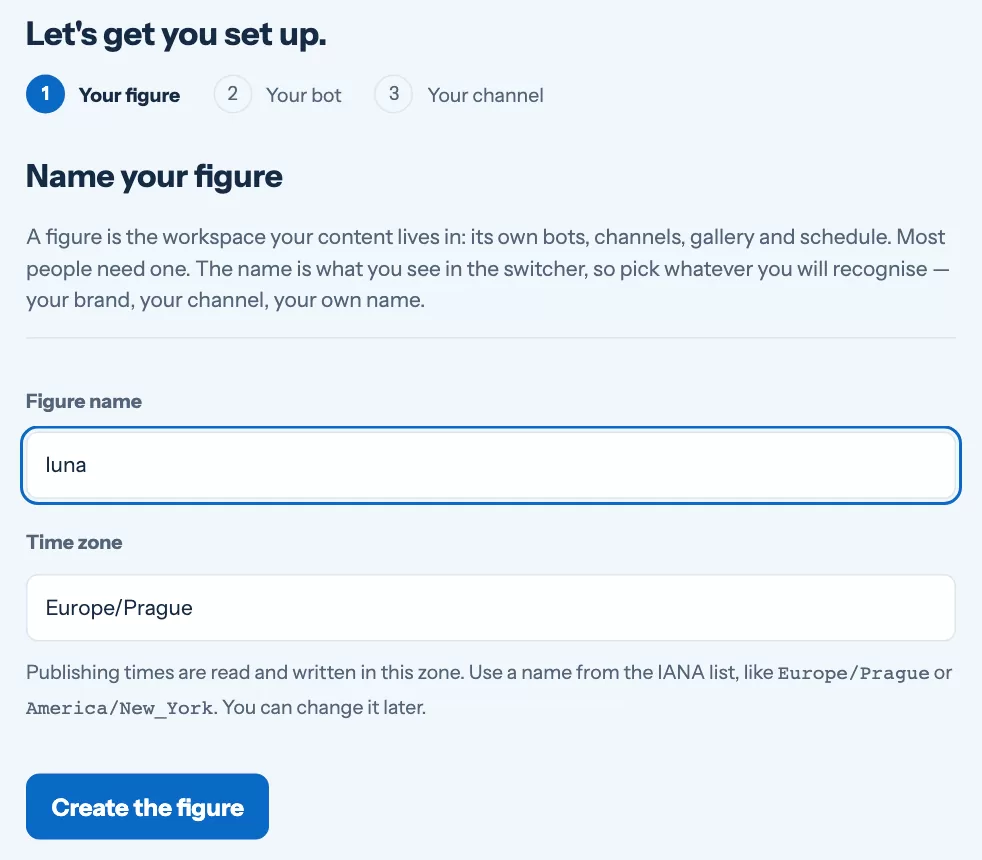
After your first sign-in, VelocityBot opens a short wizard with three steps. You can leave at any time: when you come back, it continues where you stopped.
- Name your figure A figure is the name you publish under — you, your brand or your project. Pick the name your fans know and your time zone. All times in VelocityBot (scheduled posts, reports, reminders) use this time zone.
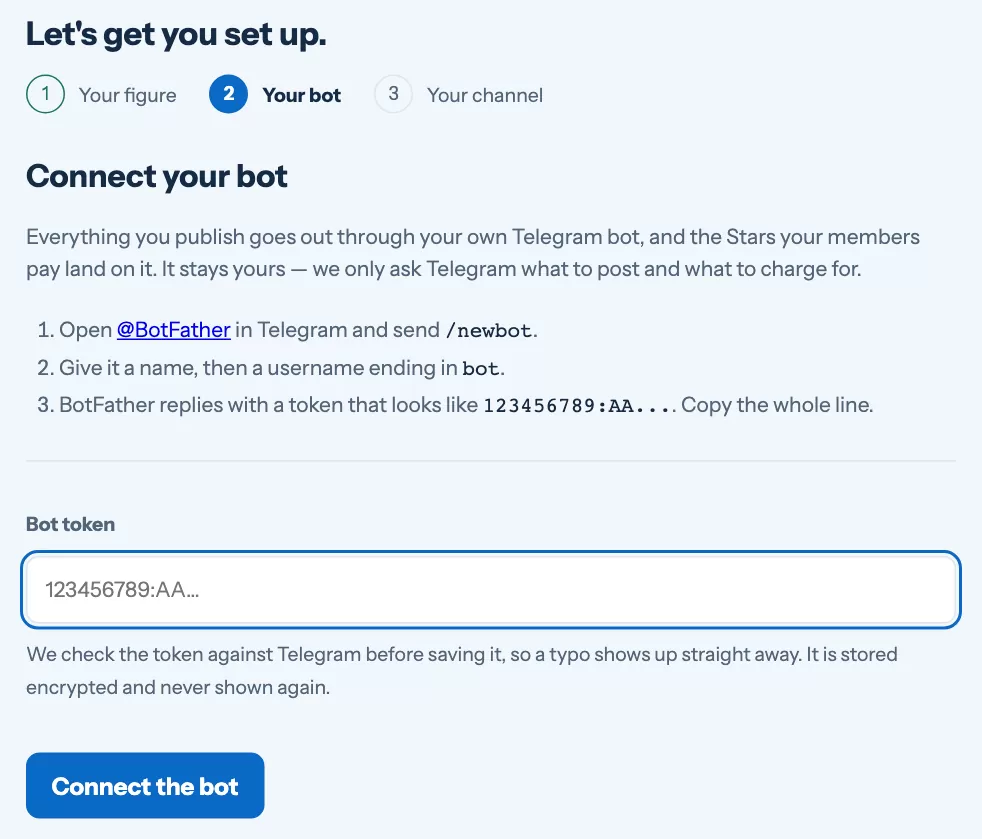
- Connect your bot Your figure needs its own bot. You create it in Telegram with @BotFather — the official Telegram bot for making bots — and paste its token into VelocityBot.
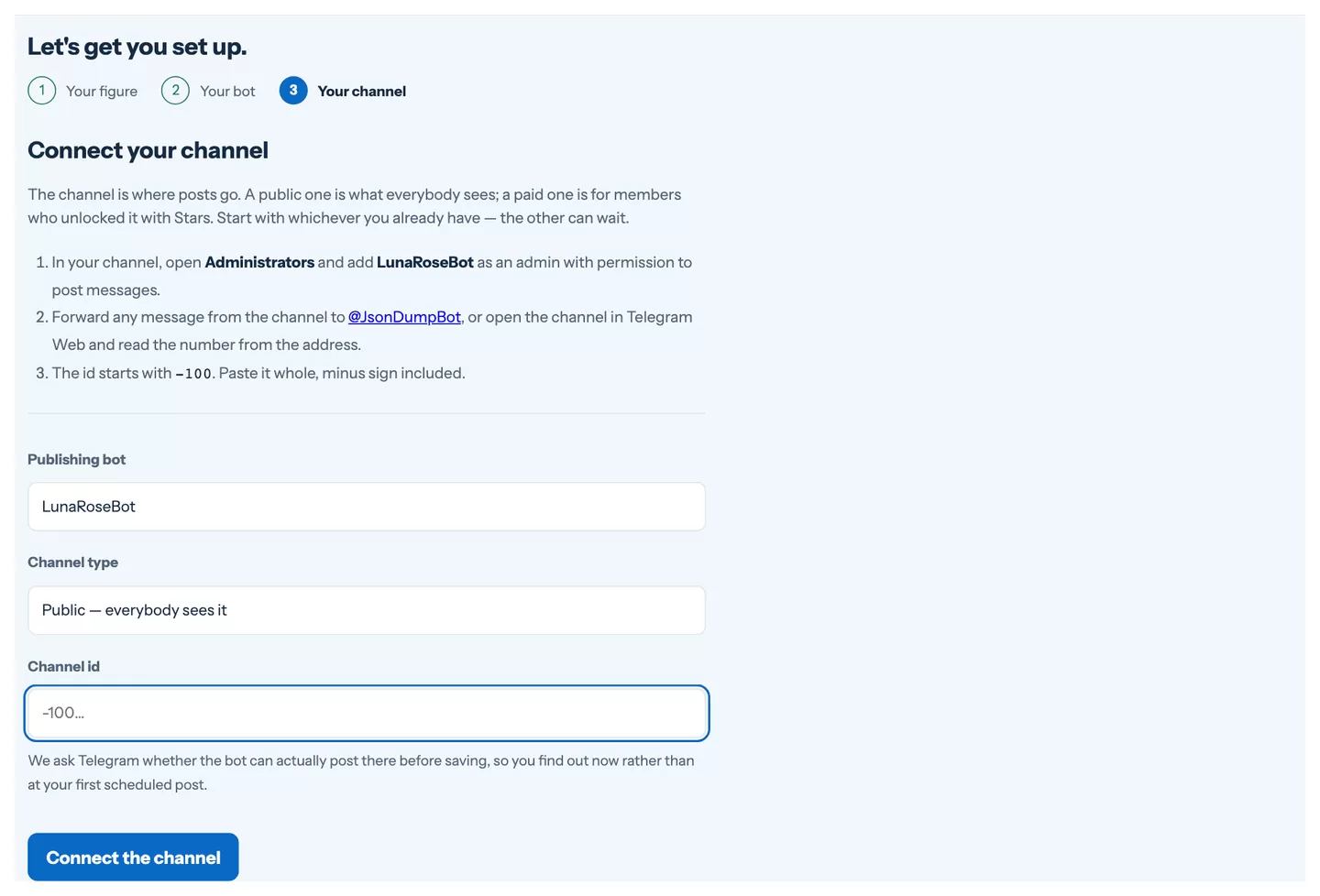
- Connect your channel Add the bot to your channel as an administrator and tell VelocityBot the channel's ID. Most creators have two channels: a paid channel for members and a free public channel (your shop window).
Create your bot with BotFather
- Open @BotFather in Telegram Search for
@BotFatherand check it has the blue tick. - Send /newbot BotFather asks for a display name (for example Luna Rose) and then a username that ends in bot (for example
LunaRoseBot). - Copy the token BotFather replies with a long code like
123456789:AAH…. That is the token — paste it into the wizard and press Connect the bot.
Keep the token secret. Anyone with the token can control your bot. If it ever leaks, send /revoke to BotFather and replace the token under Settings › Bots.
Connect your channels
For each channel — the paid one and the public one — do the same:
- Add the bot as an administrator In the channel open Administrators → Add admin, find your bot and allow it to post messages. In the paid channel also allow invite users via link and ban users — that is how the bot lets paying members in and removes them when their access ends.
- Find the channel ID Forward any message from the channel to
@JsonDumpBotin Telegram, or open the channel in Telegram Web and read the number from the address. The ID starts with-100— paste it whole, minus sign included. - Choose what the channel is for Paid channel for members, public channel for free posts and promotion. Then press Connect the channel.
You can add or change channels later under Settings › Channels, and edit the bot's description — what people see before they press Start — under Settings › Bots.
Finish your figure settings
Open Settings › Figures. Three things are worth setting right away:
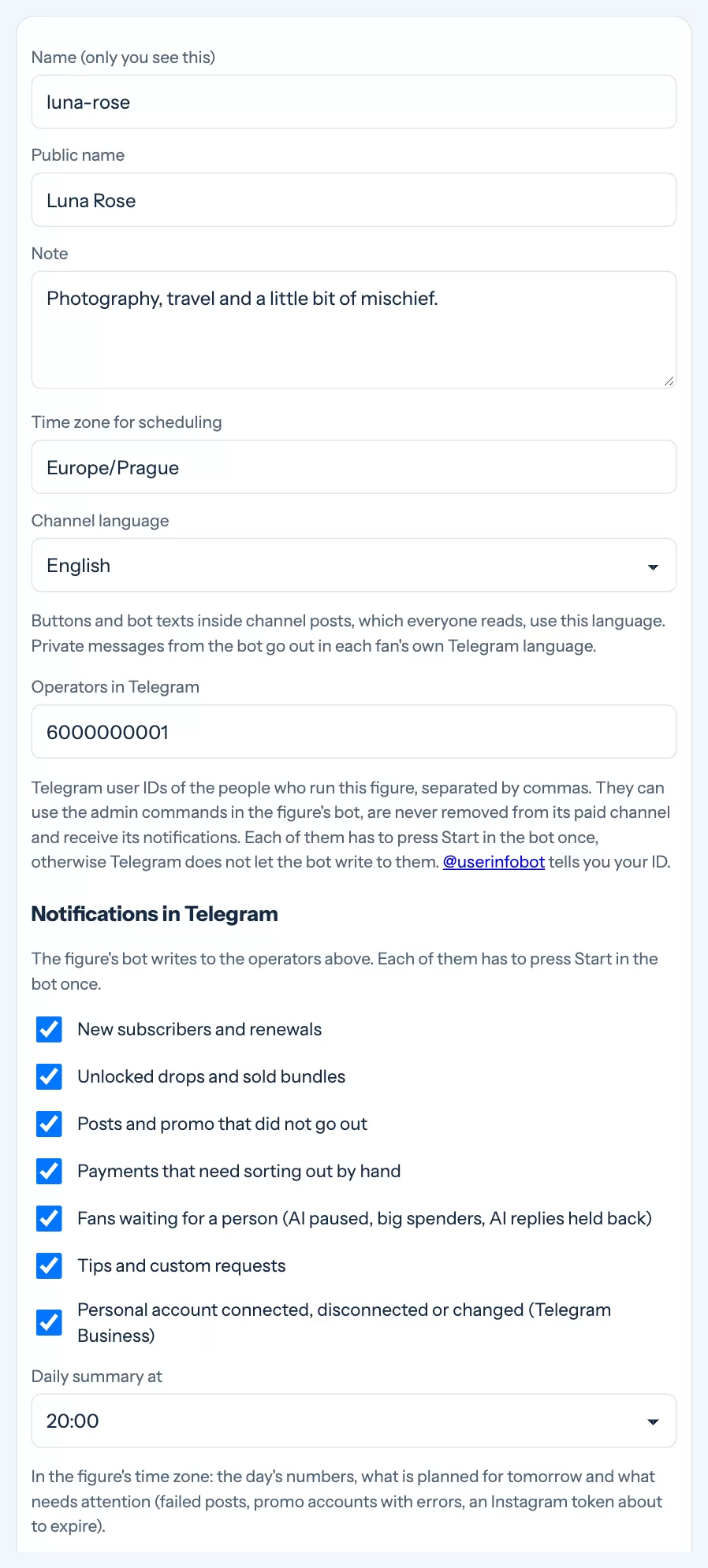
- Operators in Telegram — your Telegram user ID (and those of your team). Operators get notifications from the bot, can use its admin commands and are never removed from the paid channel.
- Notifications in Telegram — choose what the bot tells you: new subscribers, sales, a fan waiting for a person, problems with posts. The daily summary arrives at the hour you choose.
- Channel language — the language your bot uses in the channel and for messages it writes on its own.
Not sure what your Telegram ID is? Send /start to @userinfobot in
Telegram — it replies with your numeric ID.
Check that everything works
- Start your own bot Open your bot in Telegram and press Start. A bot can only write to people who started it — you included.
- Save a test post In Posts write a short post and press Save as draft.
- Press Send test on the post's card in the list. The bot sends the post to the operators in a private chat, exactly as the channel would get it.
If it arrives, you are ready to publish — continue with Posts and the calendar.
Everything about your own account lives under My account in the top right corner: your subscription, your password and the language of the workspace.
Your subscription
My account › My subscription shows the plan of each figure, how much of it you have used this month, when it was paid until, and every payment with its invoice to download.
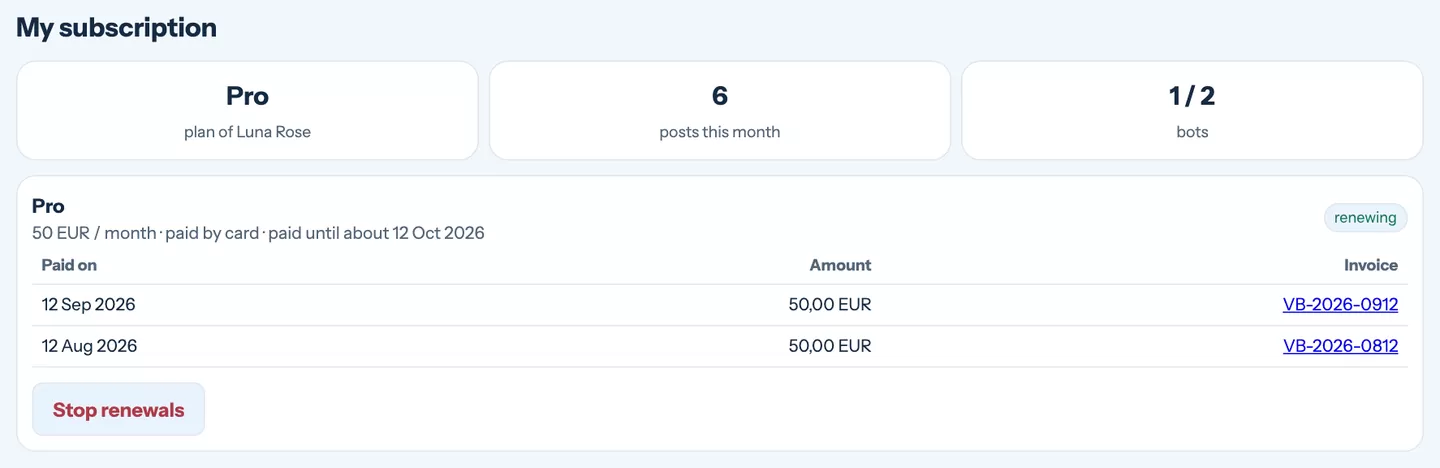
- Limits — plans differ in how many bots a figure may have and how many posts you can create per month. Drafts and scheduled posts count; a post that went out does not count twice.
- Invoices — every payment has its invoice next to it. Company details are taken from your order.
- Stop renewals — ends the subscription at the end of the paid period. Until then everything keeps working.
When a payment does not go through
If a renewal fails or you stop renewing, a yellow bar appears at the top of every page: Publishing is paused. Your content, fans and settings stay exactly as they are — only new posts and uploads wait. Pay the subscription and publishing starts again by itself, no need to contact anyone.
Your members are not affected by this: the bot keeps welcoming people, taking payments and letting paying members into your channel.
Password
The password from your welcome e-mail was generated for you. Change it to one only you know under My account › Password. After several wrong attempts in a row the account locks for a few minutes — that protects you from someone guessing.
Language and dark mode
- Language — My account › Language switches the whole workspace. It does not change what your bot writes to fans: the bot answers each person in their own language, and in the channel it uses the channel language of your figure.
- Dark mode — the moon button in the top bar. Your choice is remembered in the browser.
More than one figure
If you run several projects, each one is its own figure with its own bot, channels, gallery and fans. When you have access to more than one, a switcher appears at the left of the top bar — everything you see then belongs to the figure you picked. Need another figure? Write to us and we will add it to your account.
A post is what goes into your channel: text, photos, a video or a file — free for everyone or paid. You write it once, pick a time, and VelocityBot publishes it for you. The same post can go to X, Bluesky and Instagram as well (see X, Bluesky and Instagram).
Write a new post
Open Posts. The editor is on the right, your queue on the left.
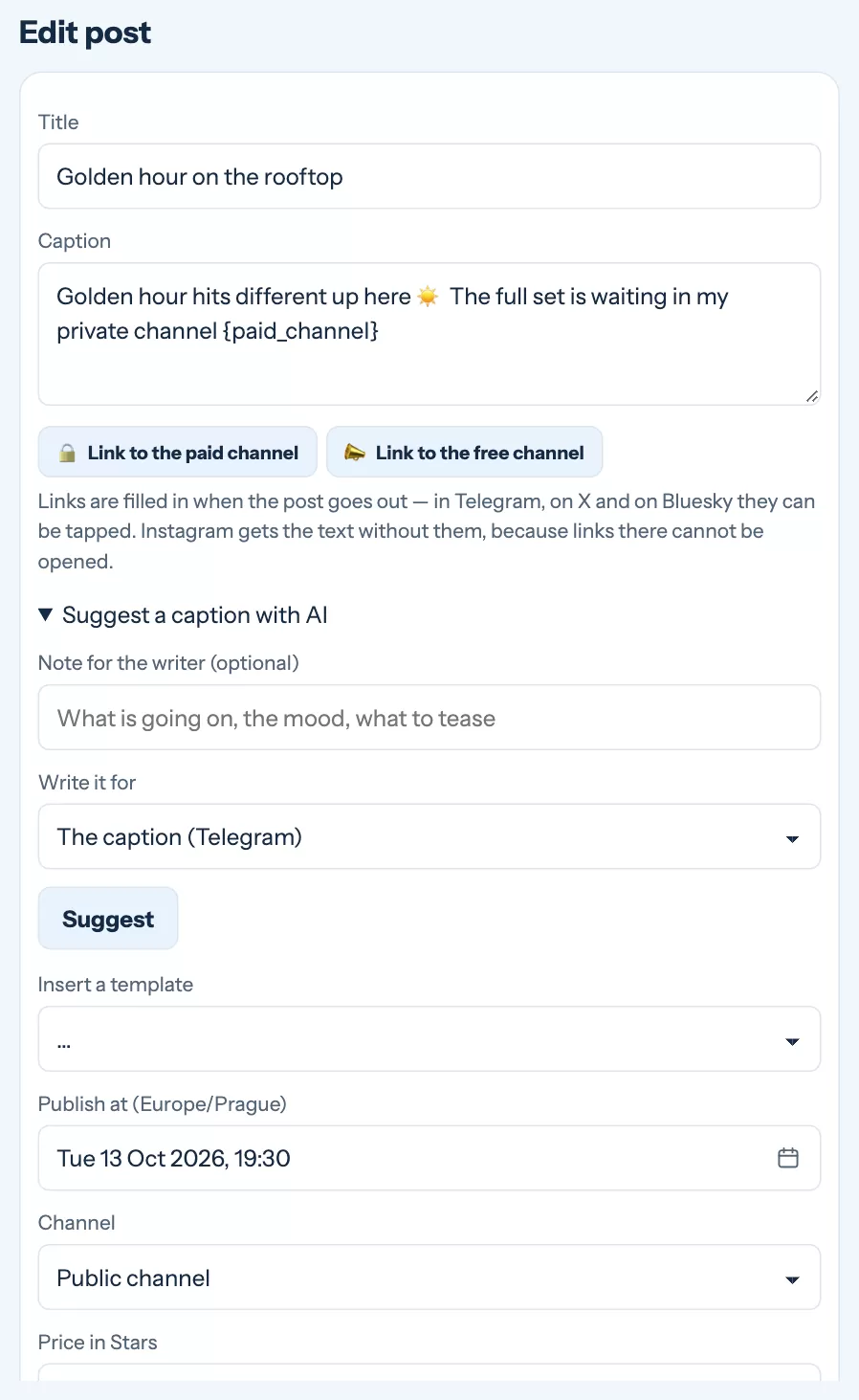
- Title Only you see it — it is how you find the post in the list and on the calendar.
- Caption The text of the post. You can use bold, italics and links. The buttons under the field insert a link to your paid or free channel — the right address is filled in when the post goes out.
- Media Tap photos and videos in the gallery picker. The order follows your taps; the ✎ on a selected tile opens the photo editor (crop, blur, cover).
- Publish at Date and time in your figure's time zone. The quick buttons underneath are your best times, learnt from when your fans actually buy and join.
- Channel The public channel, the paid channel, or no Telegram if the post is only for social networks.
- Schedule or Save as draft A draft is never published until you schedule it.
Let the AI suggest a caption
Open Suggest a caption with AI, add a note if you like (the mood, what to tease) and press Suggest. The AI looks at the photos you selected and offers three captions — for your channel or for one of the networks. Nothing is replaced until you tap a suggestion.
Templates save typing. Text you send again and again — an invitation, a sign-off — can be saved under Content › Templates and inserted into any caption.
Paid posts
Enter a price in Stars and the post becomes paid. Choose how the payment works:
Free teaser + unlock in the bot (recommended)
The channel gets a free preview with a button. The bot sends the paid photos in a private chat after payment. You see who bought it and the Stars go to your bot.
Paid media straight in the channel
One tap shorter for the buyer, but Telegram does not tell the bot about these purchases — the sale will not appear in your reports.
For the teaser, pick a photo — or press Make teaser: blur first photo and VelocityBot creates a blurred preview for you. Next to the price you also see which price bands earned you the most so far.
Preview and test
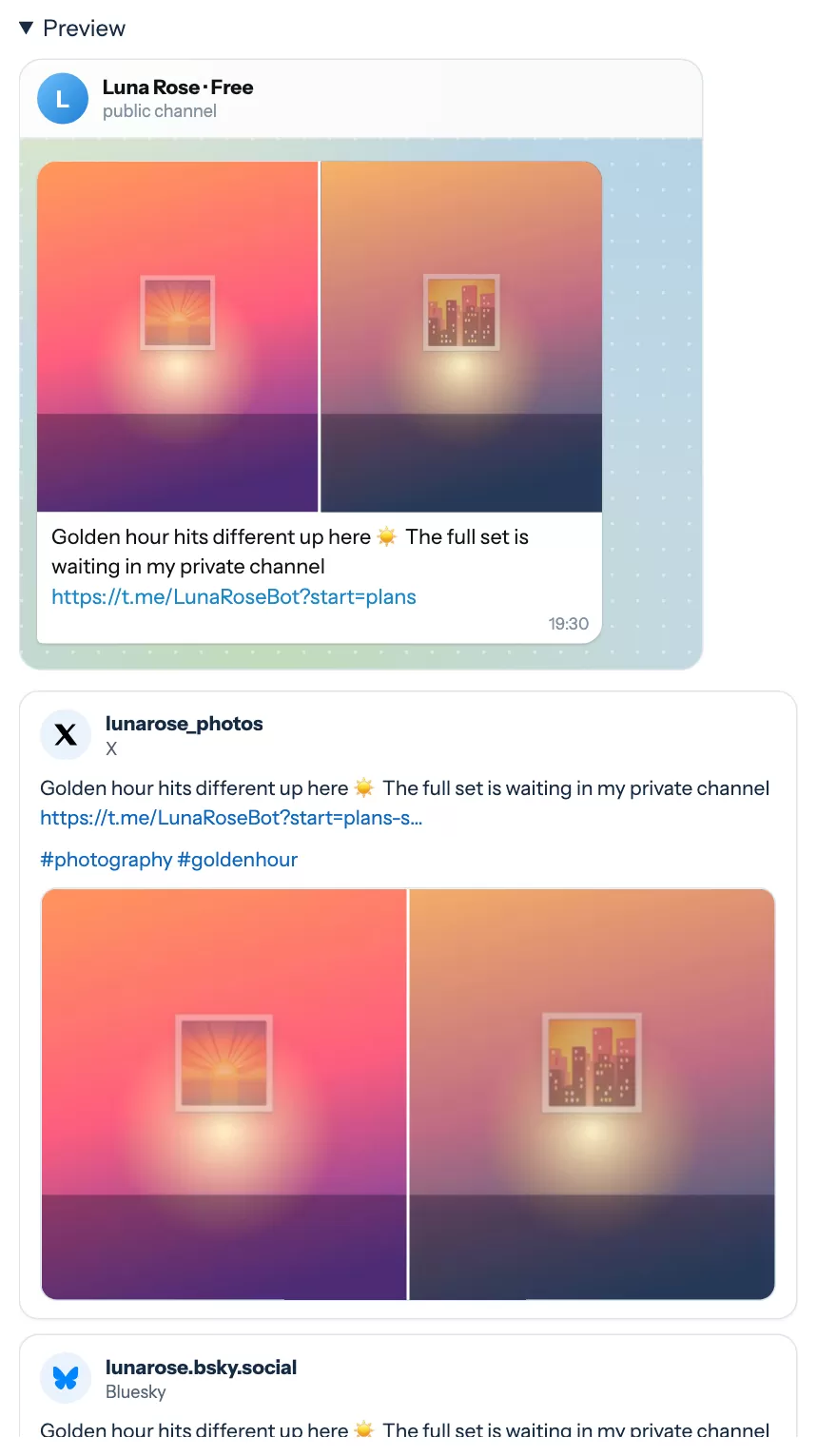
Open Preview under the form to see the post as a message in your channel, with the bot's buttons, and as a card for each network. After saving, Send test on the post's card sends it to you in Telegram.
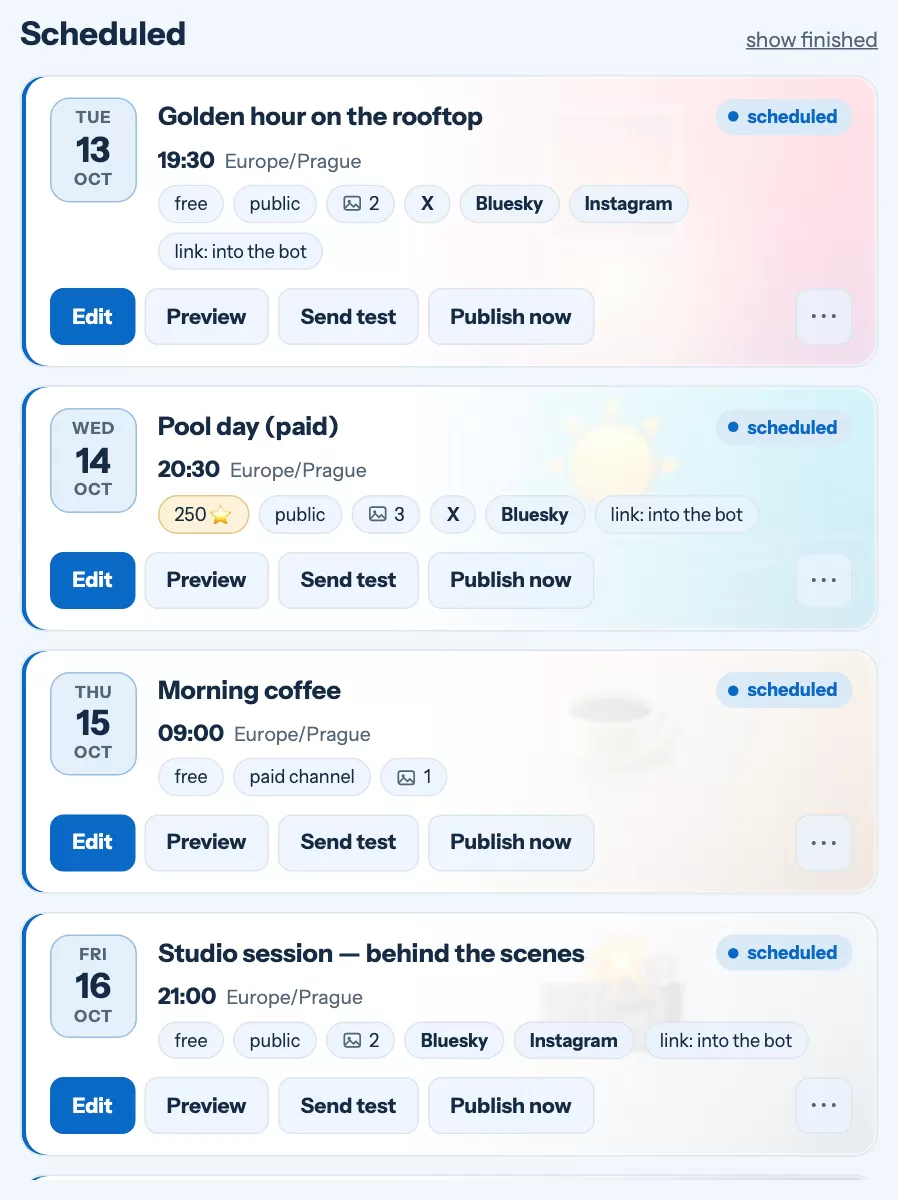
Your queue
The list shows what is coming, as cards with the date, the channel, the networks and the state. Edit, Preview, Send test and Publish now are right on the card; copying, promoting again and deleting are under ⋯. Show finished lists what already went out, with links to the published posts.
The calendar
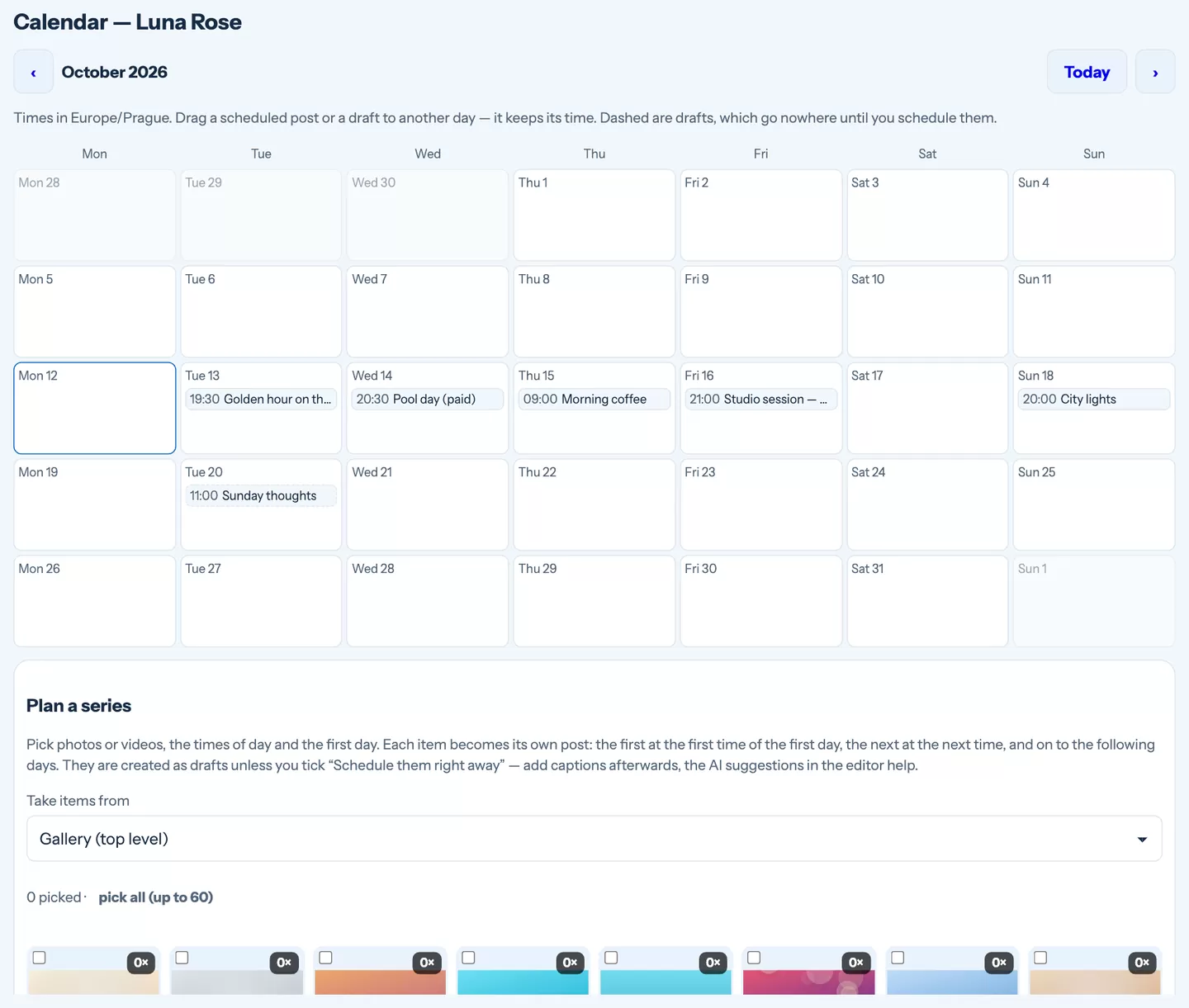
Content › Calendar shows the whole month. Drag a post or a draft to another day and it keeps its time; drafts are dashed. Plan a series turns photos or videos from a folder into separate posts: pick the items, the first day and the times of day (your best times are filled in), and each item takes the next free time. The series is saved as drafts — add the captions, then schedule — or tick Schedule them right away.
Something went wrong? If Telegram or a network refuses a post, VelocityBot tries again and tells you in Telegram if it gives up. The card shows what failed, and under ⋯ you can try again or stop sending to that network.
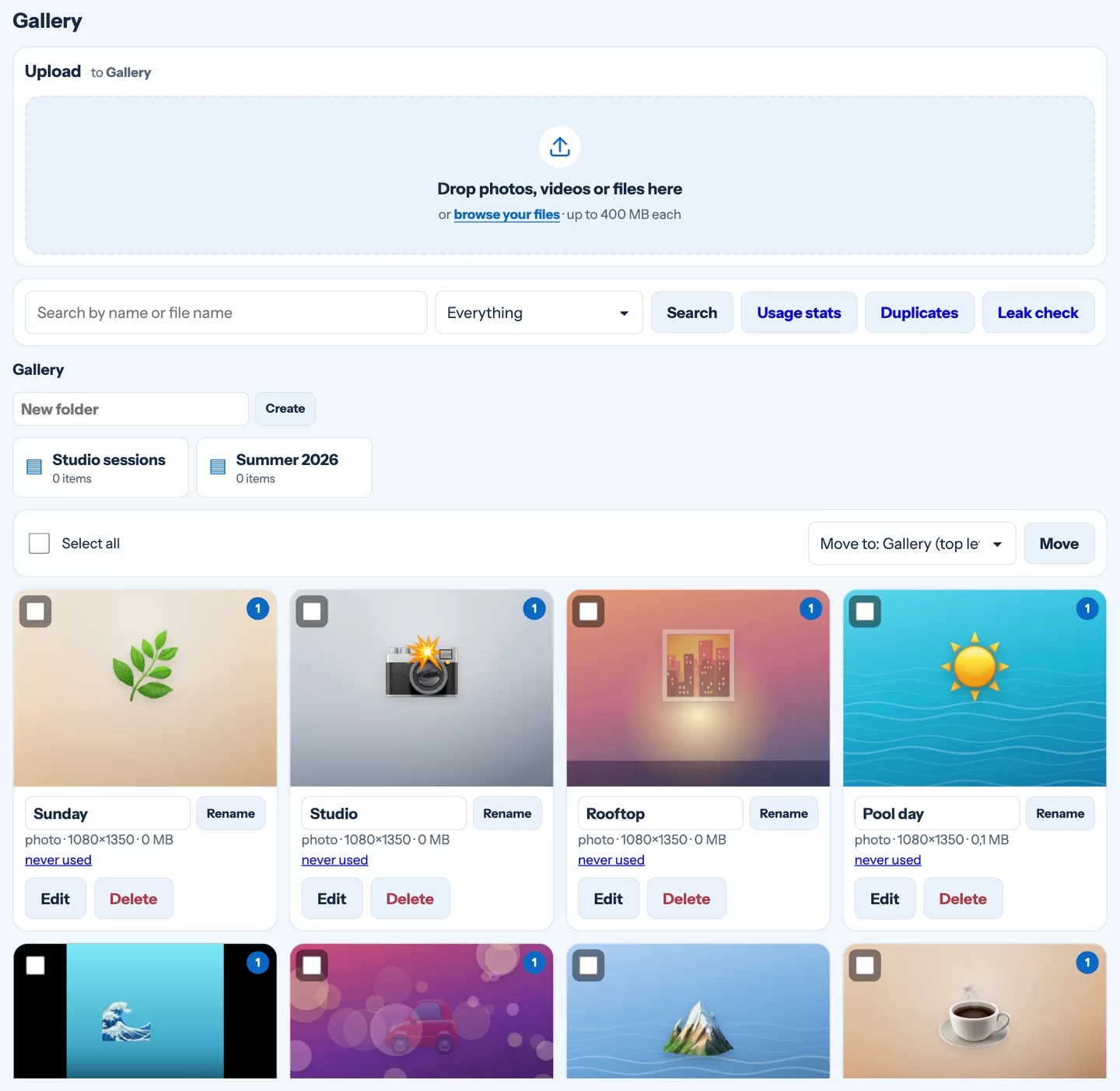
The gallery under Content › Gallery holds every photo, video and file you want to publish or sell. You upload once and use the same item in as many posts, drops and messages as you like.
Upload
Drag files onto the upload area, or tap browse your files. Each file can be up to 400 MB, and you can upload many at once — you see the progress of each one.
- Photos straight from an iPhone (HEIC) work as they are.
- Videos should be MP4 (a MOV from an iPhone works too). VelocityBot removes the location from videos as they upload.
- Files — a PDF, a ZIP, audio — can be shared in the channel for download.
Keep it tidy
- Folders — create a folder, open it and upload into it, or select items with Select to move and move them anywhere. Deleting a folder never deletes photos: they move up a level.
- Search looks through the whole gallery by name or original file name.
- Duplicates finds the same photo uploaded twice — even a resized copy sent through a messenger — and merges it into one, keeping the posts that use it.
- Usage stats shows which photos went out most and which you have never used.
The small badge on a tile (3×, +1) tells you how many times the photo already went out and in how many scheduled posts it waits. Handy so the same photo does not keep coming back.
Edit a photo
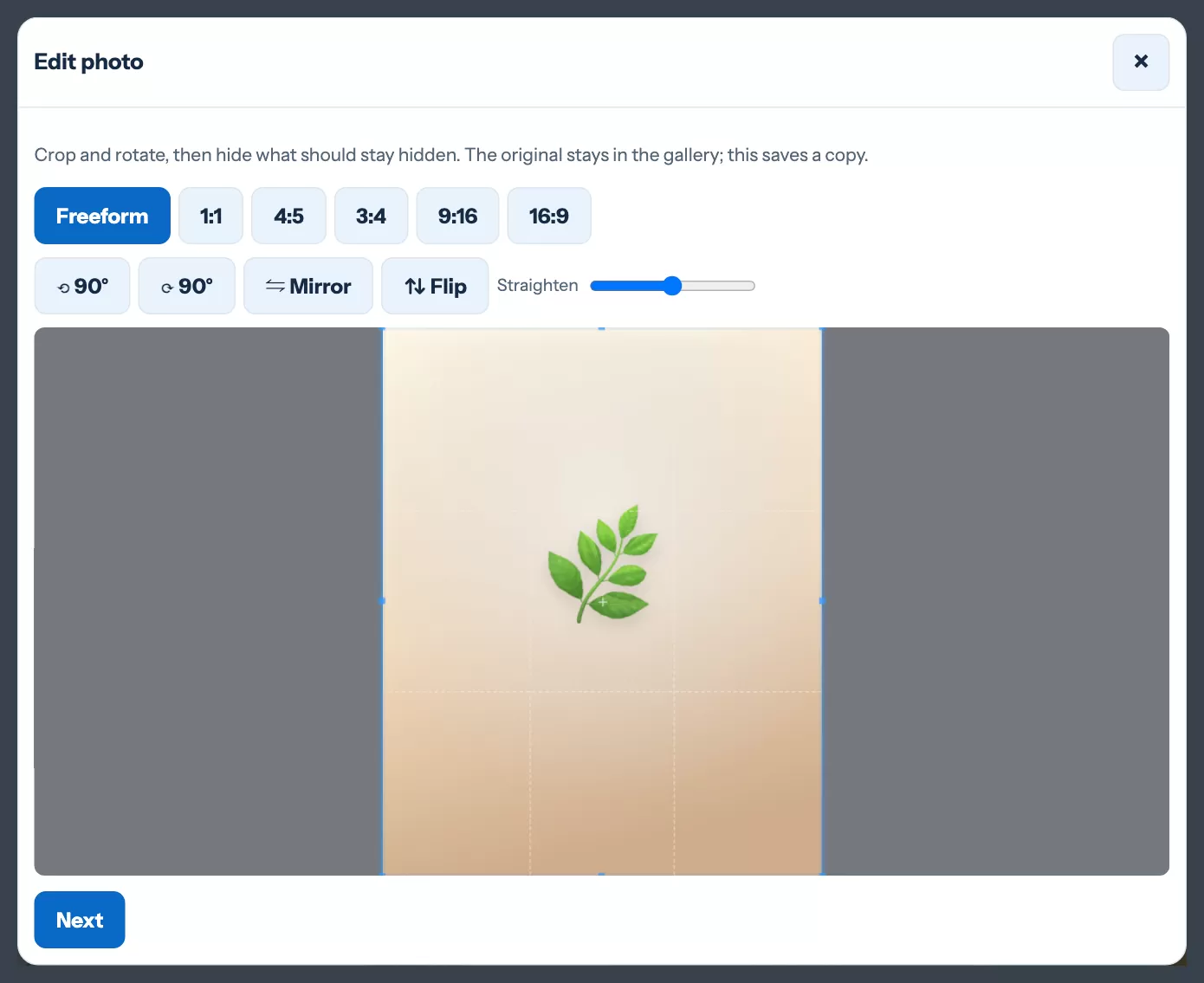
Press Edit on a photo in the gallery, or ✎ on a selected photo in the post editor. The original always stays in the gallery — every edit is saved as a new copy next to it.
Frame
Crop freely or to 1:1, 4:5, 3:4, 9:16 or 16:9. Rotate, mirror and straighten the horizon.
Hide
Draw a box to blur, pixelate or cover with a black bar. Tap to place an emoji or text.
Brand
Put your watermark on the photo. Its text, position and size are set once under Settings › Figures.
A crop for each network
In the post editor, ✎ on a photo also offers Crop for X, Bluesky, Instagram…: the same photo gets its own crop for each network. Instagram only accepts shapes between 4:5 and 1.91:1 — a tall phone photo is fitted for it automatically if you do not crop it yourself.
Video cover
For a video, Pick cover lets you slide to the frame you want. It becomes the image members see before they press play — and, for a paid video, before they decide to unlock it.
A teaser in one tap
In a paid post, under the teaser choice, press Make teaser: blur first photo or pixelate first photo. VelocityBot makes a free preview from your first photo, saves it to the gallery and selects it. The blur is strong enough that nothing can be recovered from it.
Your public posts can go out to X, Bluesky and Instagram at the same time as to your free Telegram channel — photos, a video or just words, with a link back to your bot. You write the post once; VelocityBot adapts it for each network.
Paid content never leaves Telegram. A paid post goes to the networks only as its free teaser. Without a teaser it is not promoted at all — the post card tells you so.
Connect your accounts
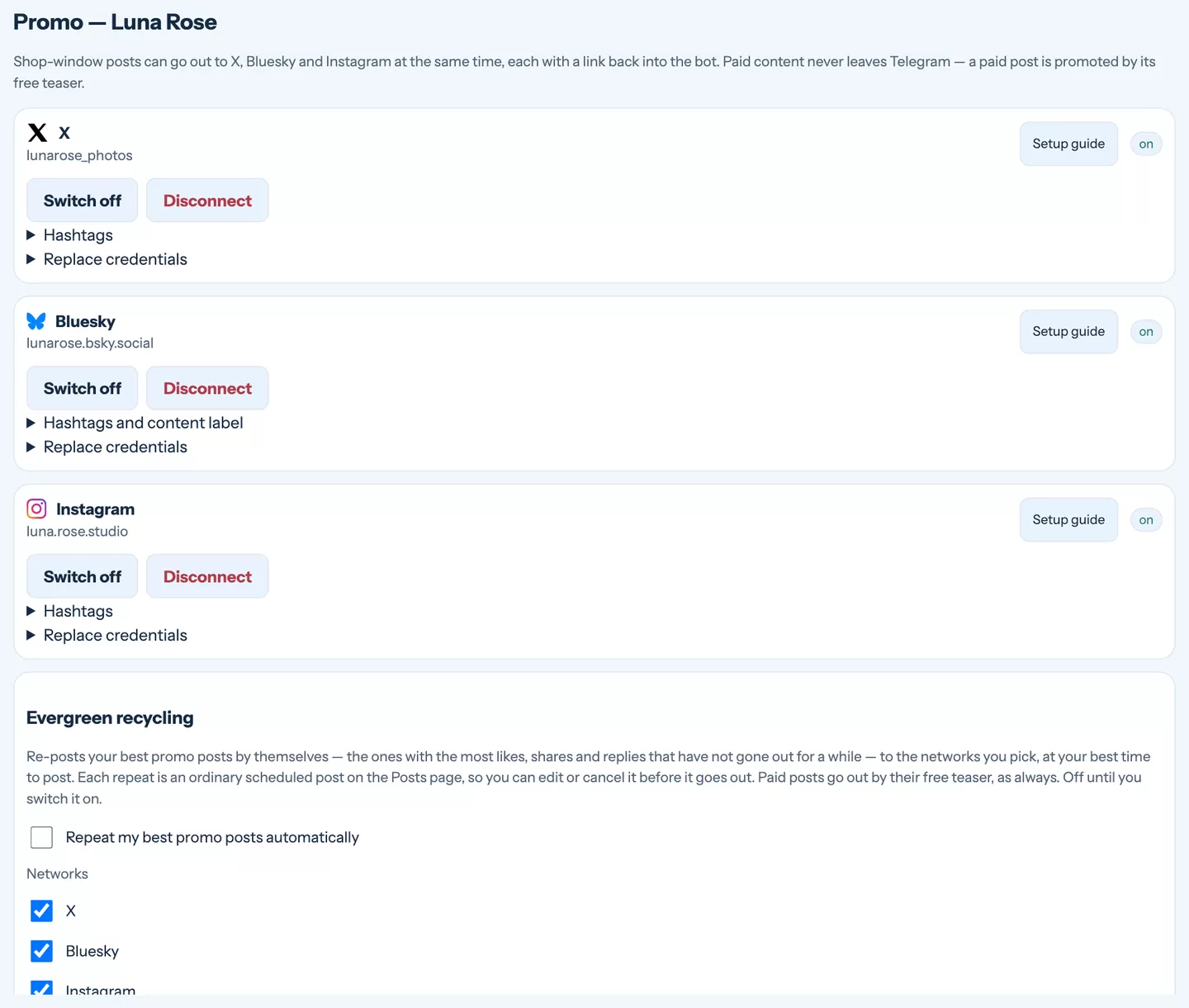
Open Content › Promo accounts. Each network has its own box and a Setup guide button with a step-by-step guide that matches what you will see on the network's site.
X
Four keys from the X developer portal. The app there must have read and write access — if you change it later, generate the tokens again.
Bluesky
Your handle and an app password (Settings → Privacy and security → App passwords) — never your real password.
A professional (Business or Creator) account and a small app on Meta's developer site. The guide walks you through it; afterwards you connect with one button and the access renews by itself.
VelocityBot signs in with the details before saving them, so you know straight away whether they work. They are stored encrypted and never shown again — to change them, enter them anew.
For each account you can also set hashtags added to every post (only those the post does not already contain; on Bluesky they are clickable) and, on Bluesky, the content label the network asks for with adult content.
Send a post to the networks
In the post editor, under Also post to, tick the networks.
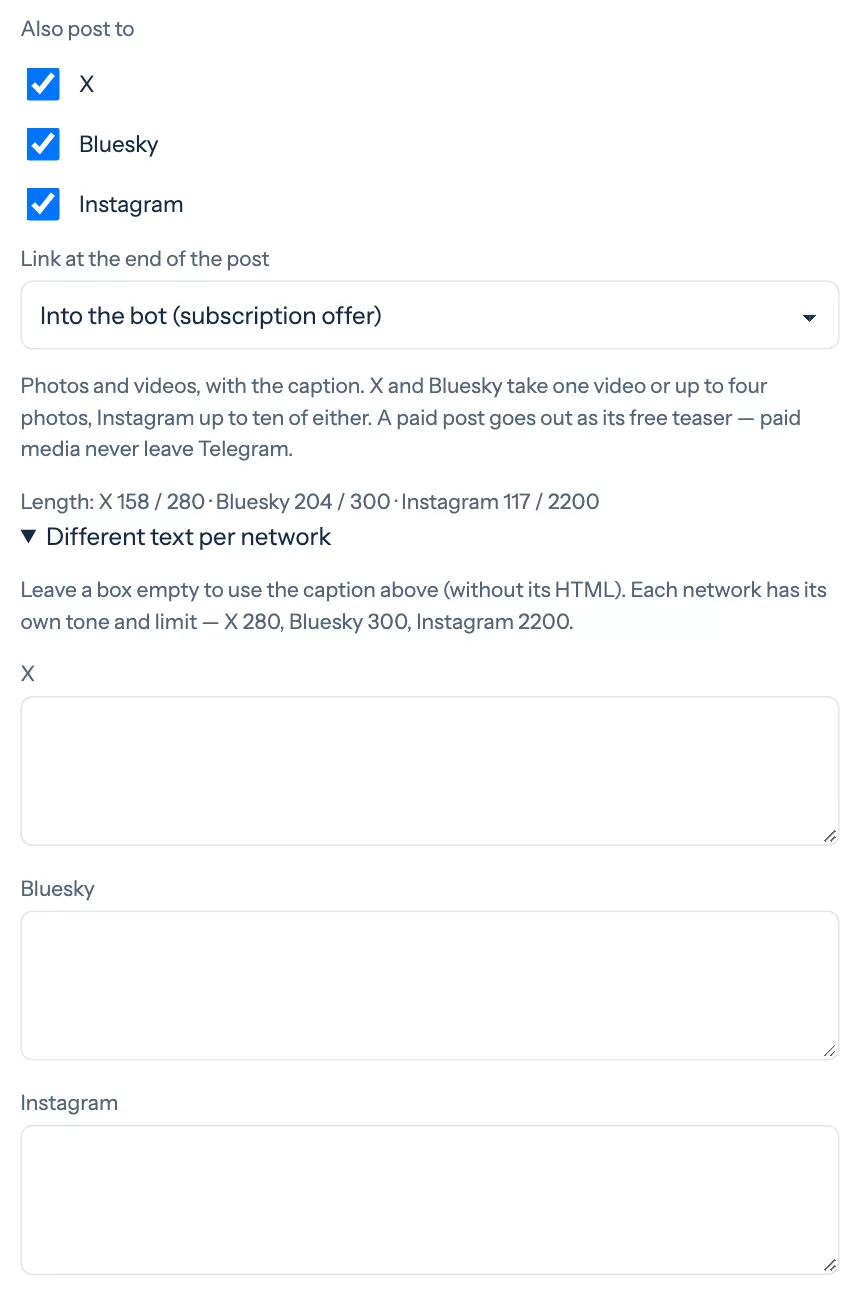
- Link at the end of the post — into your bot (straight to your plans), to your free Telegram channel, or none. The link is tracked, so Insights shows which network and which post brought people in. Instagram does not allow clickable links in posts, so it gets none.
- Different text per network — leave a box empty to use your caption (without its formatting), or write a text in the tone of that network.
- Media — X and Bluesky take one video or up to four photos, Instagram up to ten.
A comment under the post
On X and Bluesky you can add a comment under the post — your own reply that goes out right after the post. In the editor it is a separate section that shows up when X or Bluesky is ticked; the post itself stays exactly as you wrote it.
- A good place for the link to your Telegram channel: the buttons under the box add a link to the free channel or the paid channel (that one leads to your bot with your plans, because a paid channel has no public invitation). The link is tracked just like the one in the post.
- Each network has its own box; Same as X copies the X comment to Bluesky. Leave a box empty for no comment there.
- The preview shows the comment under the post, and the post card shows how it went with a 💬 label. If only the comment fails, Retry the comment sends just the comment again — never the post.
The right length, automatically
Every network has its own limit: X 280 characters, Bluesky 300, Instagram 2,200 — hashtags and the link included. The line under the networks counts for you as you type.
When your text runs over for a ticked network, the editor plays a short chime, lets the AI shorten it for that network and scrolls to the result. The shortened text keeps your language, your tone and your links to the channels.
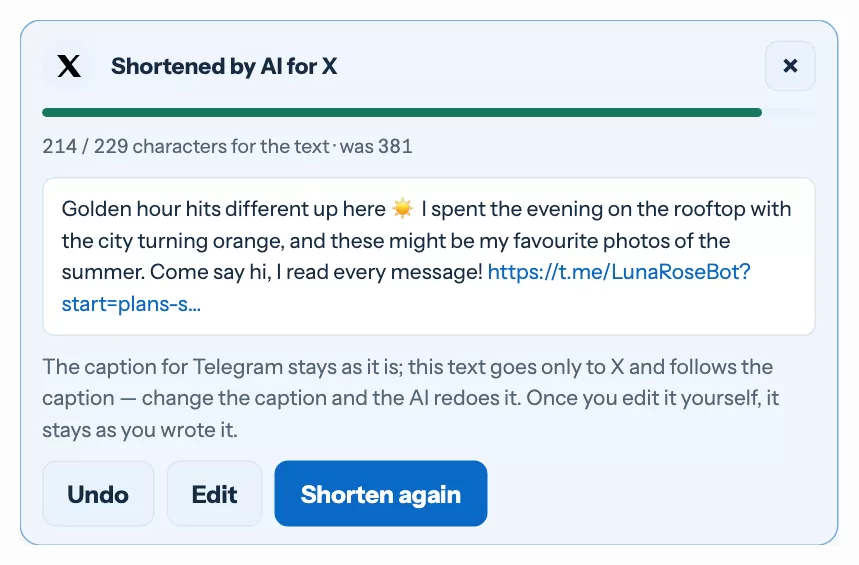
- Undo returns the original text, Edit opens it for your own changes, Shorten again asks for another version.
- Networks where the text already fits get a green card saying so, with Rewrite with AI if you would like a fresh version anyway.
- The AI text follows your caption: change the caption and it is redone. Once you edit the network text yourself, it stays exactly as you wrote it.
- Your Telegram caption is never changed.
If you ignore the warning, nothing breaks: a text that is too long is cut with “…” when it goes out, and a link is never cut in half.
Results and repeating what works
After publishing, the post card shows the likes, reposts and replies each network reports. Two ways to give a good post a second life:
- Promote again (under ⋯ on a published post, and in Insights under Worth repeating) creates a draft for the networks only.
- Evergreen recycling (on the Promo accounts page, off by default) repeats your best promo posts by itself — at most as often as you allow, never the same post too soon, at your best times.
Members pay for access to your paid channel with Telegram Stars, right inside your bot. You decide the plans and prices; the bot does the selling, lets people in and removes them when their access ends.
What your fans see
- Start A fan opens your bot — from your channel, a promo post or a link — and presses Start.
- Age check They confirm they are 18 or older. Nothing is sold before that.
- Your plans The bot shows your plans as buttons. One tap opens the payment in Telegram.
- Access After paying, they get a personal one-time link into your paid channel. When access ends, the bot removes them — unless they renewed.
Lost the link? /join in the bot gives a new one to anyone whose access is still valid.
Set up your plans
Open Sell › Plans & reminders.
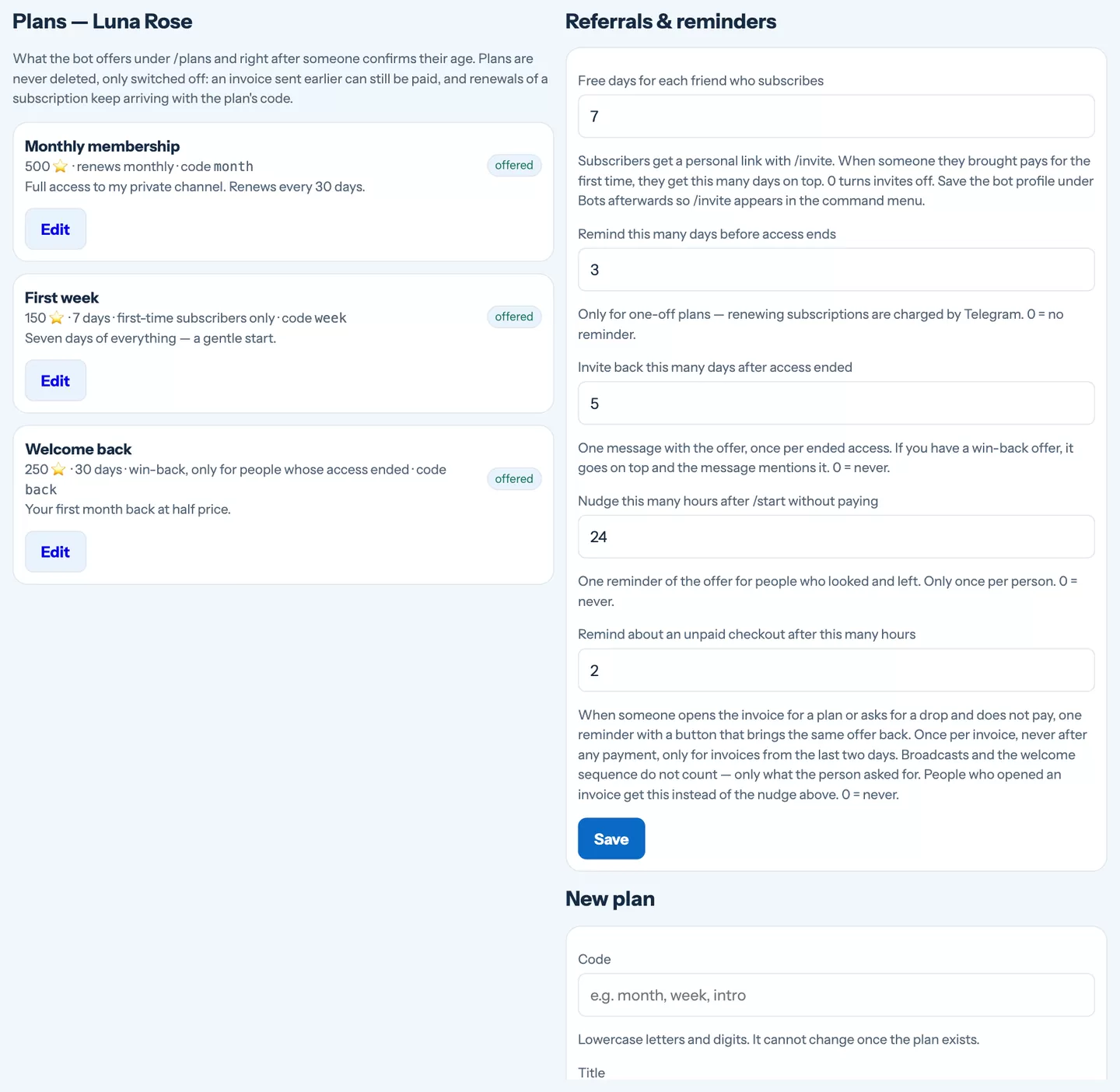
- Title and description — what the fan sees on the button and the invoice.
- Price in Stars and length in days — for example 30 days for 500 ⭐.
- Renewing or one-off — a renewing subscription is charged by Telegram every 30 days until the fan cancels it in Telegram; a one-off pass simply ends.
- Who is it offered to — everyone, newcomers only (an introductory offer, such as a cheaper first week), or only people who paid before and let it lapse (a win-back offer).
- Position in the offer — the order of the buttons.
Plans are never deleted, only switched off — someone may still be paying an invoice sent earlier. Introductory and win-back offers have to be one-off: Telegram renews at the same price, so a renewing discount would never end.
Referrals and reminders
Lower on the same page, under Referrals & reminders, the bot can sell for you. Each option is off until you set a number, and nothing goes to anyone who blocked the bot.
- Free days for each friend who subscribes — every member gets a personal invite link with /invite; when a friend pays through it, the member gets free days.
- Remind before access ends — a note a few days before a one-off pass runs out.
- Invite back after access ended — a message to those who left, with your win-back offer first.
- Nudge after /start without paying — one gentle reminder for people who looked but did not buy.
- Remind about an unpaid checkout — for someone who opened the payment and did not finish, with a button that brings the same offer back.
Free trials
Sell › Free trials creates links that give a few days of free access — for a giveaway, a collaboration or your bio.
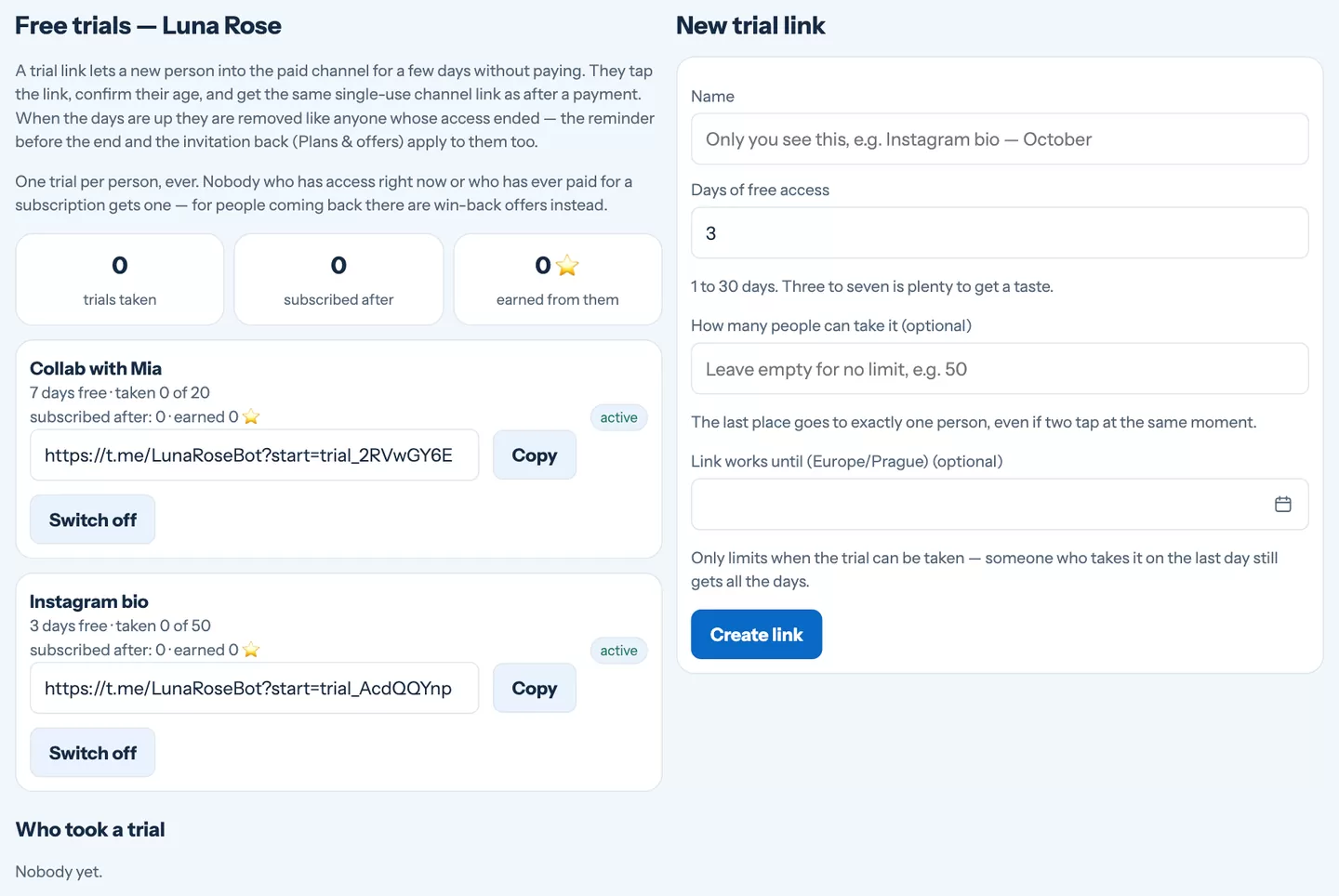
- Name the link so you know where you used it.
- Days of free access (1–30) and, if you want, how many people can take it and until when.
- Create link and copy it. The page then shows who took a trial, how many went on to pay and how much they brought.
Each person can take one trial per figure, ever — and someone who already paid gets your win-back offer instead of free content.
Besides subscriptions, your bot can sell single pieces of content, bundles, tips and custom requests. Fans always pay with Telegram Stars in the chat with your bot, and everything they buy is protected from forwarding and saving. Each of these is off until you switch it on.
Paid drops
A drop is a set of up to ten photos and videos that a fan unlocks for a price. Create one under Sell › Paid drops: give it a title, a caption, a price in Stars and pick the items from your gallery. A free teaser photo is optional.
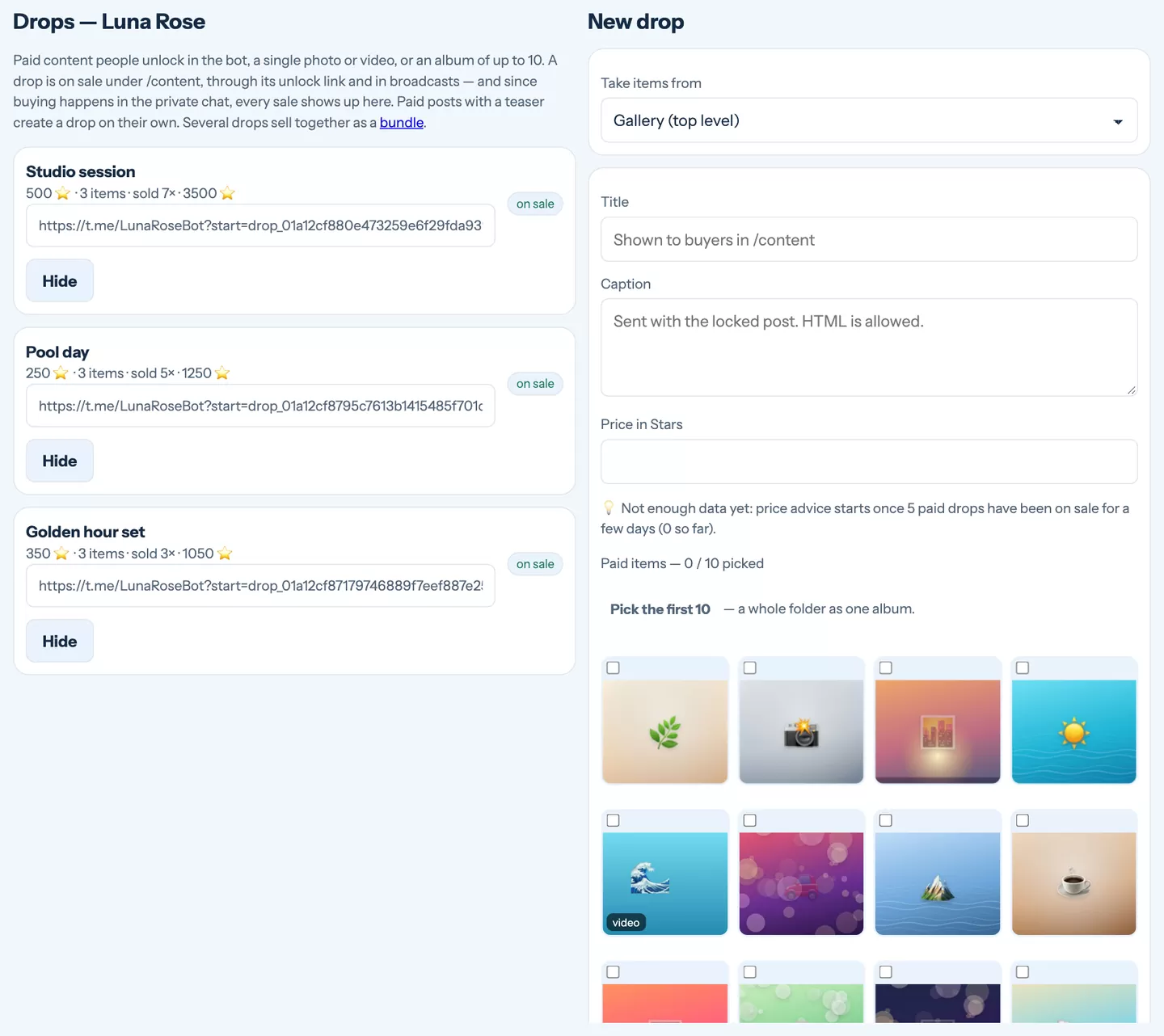
How fans get to a drop:
- a paid post in your channel with an unlock button (see Paid posts),
- /content in the bot, which lists what is for sale,
- a link to the drop you share anywhere,
- an offer from your inbox, a broadcast or the welcome sequence.
Not sure about the price? Once a few drops have sold, VelocityBot shows which price band earned you the most per drop — right next to the price field.
Bundles
Sell › Bundles puts two to ten drops together for less than their sum. The bot shows what is inside and how much the fan saves, then delivers everything right after payment. A fan who already owns some of the drops is told so before paying.
Tips and a tip menu
Under Sell › Tips switch tips on and create a menu: a coffee for 50 ⭐, a voice note for 300 ⭐… Fans tip with /tip or with one tap under your plans.
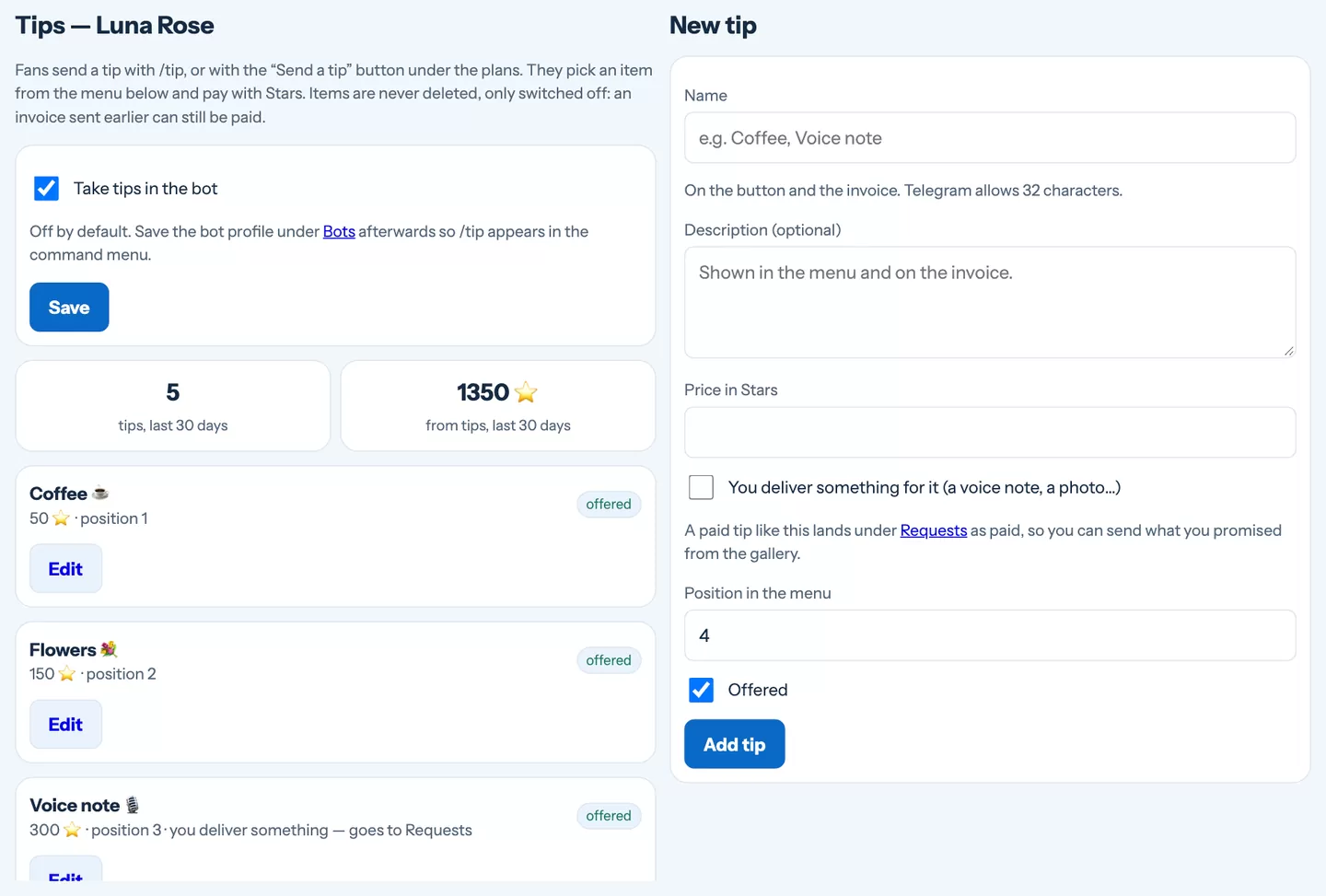
Mark an item as one you have to deliver (a voice note, a personal photo) and every tip for it lands in your requests as already paid, so nothing is forgotten.
Custom requests
Fans describe what they would like with /custom. You see every request under Sell › Custom requests.
- Set a price and a date The fan gets your price, the due date and an invoice — with a No thanks button.
- The fan pays The request turns paid. Past the due date it turns red, so you notice.
- Deliver Pick the photos or videos from your gallery and add a message. The bot sends them protected from forwarding and the request is done.
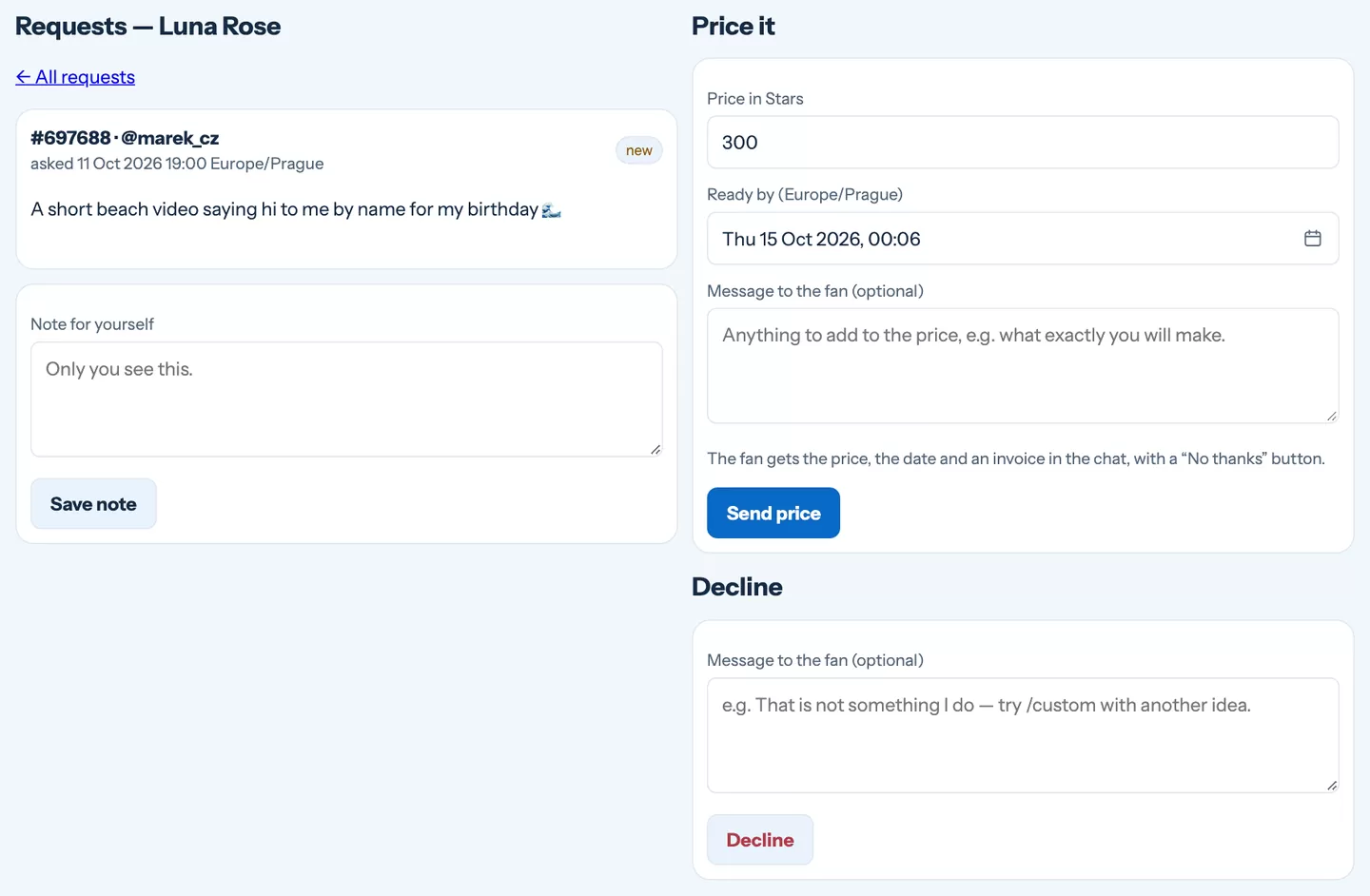
You can decline a request until it is paid. Refunds of Stars are not automatic, so price only what you are sure you will deliver. You can set a starting price for all requests.
Your bot can write to people privately — everyone at once, a chosen group, or each newcomer a set time after they arrive. Only people who confirmed their age and did not block the bot ever get these messages.
Broadcasts
A broadcast is one message to many people, straight into their private chat with your bot. Create one under Sell › Broadcasts.
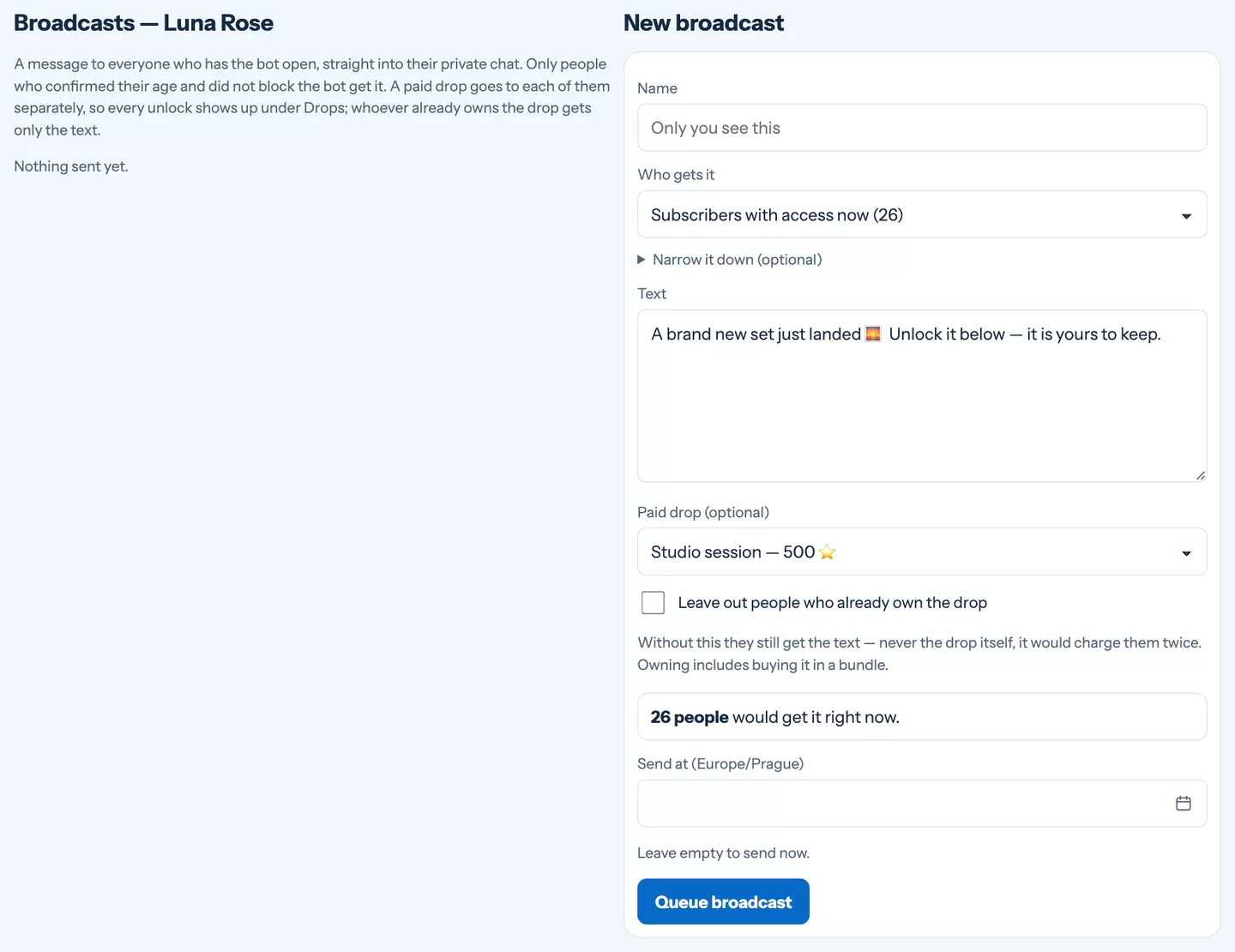
- Who gets it Everyone, active subscribers, people whose access ended, or those who never paid.
- Narrow it down (optional) By total spend (at least / at most, in Stars) or by the last purchase — for example bought nothing in the last 30 days. The form counts how many people the message will reach before you send it.
- Text Write the message. Bold and italics work.
- Paid drop (optional) Attach a drop and each person gets it with its unlock button. Tick Leave out people who already own the drop — otherwise they still get the text, never the drop itself, so nobody pays twice.
- Send at Leave empty to send now, or choose a time. Then Queue broadcast.
The list shows each broadcast's progress (sent 1,240 of 1,300). You can stop a broadcast that is still going — what went out stays.
A broadcast with a paid drop sends the drop to each person separately, so every unlock appears under Sell › Paid drops and in Insights.
The welcome sequence
Up to five messages the bot sends by itself after someone confirms their age: a hello, a taste of what is inside, an offer. Set it up under Sell › Welcome sequence.
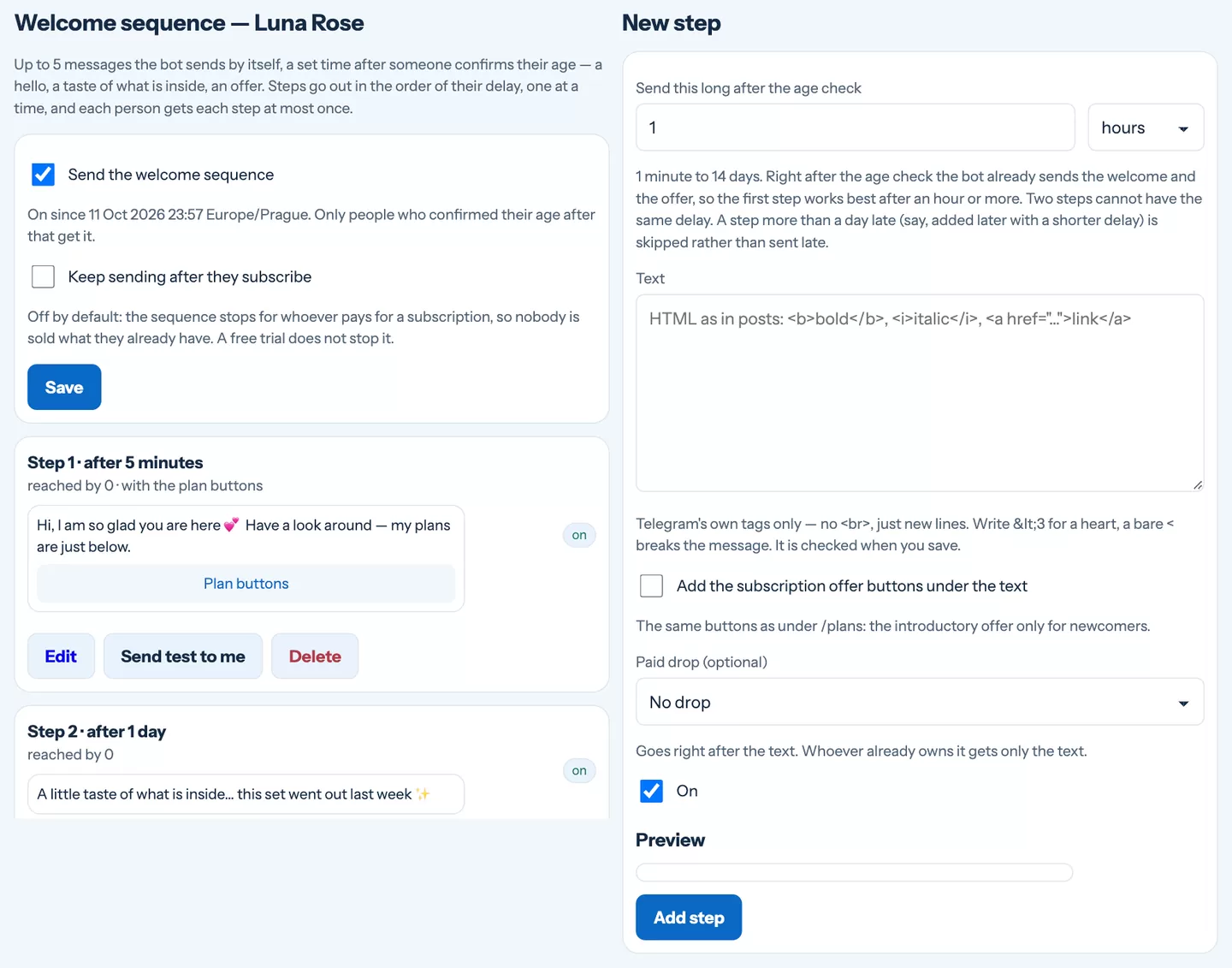
- Each step has a text, optionally your plan buttons or a paid drop, and a delay — from one minute to 14 days after the age check.
- Preview shows the message as the fan will see it, and Send test to me sends it to you in Telegram.
- Switching it on starts the sequence for people who confirm their age from now on — nobody who came before gets anything.
- By default the sequence stops when someone subscribes, so nobody is sold what they already have. A free trial does not stop it.
Each person gets each step at most once, even if you add or move steps later. A step that is more than a day late (for example one you added afterwards) is skipped rather than sent out of context.
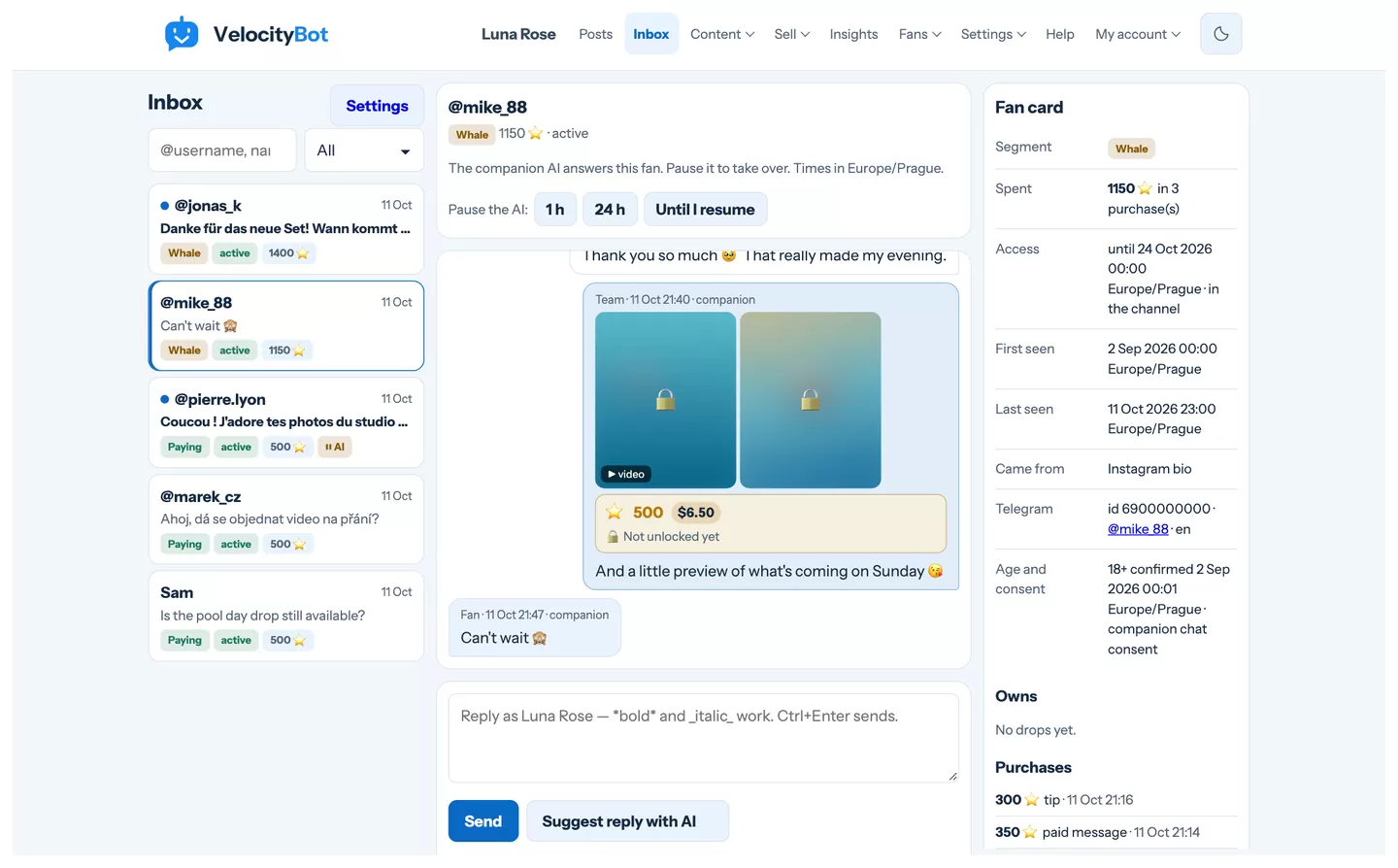
Every private message a fan sends your bot lands in Content › Inbox, together with what the AI answered. You can let the AI keep the conversation going around the clock, answer yourself whenever you like, and step in completely for the fans who should talk to a person.
Conversations
The newest conversations are at the top. A blue dot marks messages nobody has read yet, and the badges show the fan's segment, whether they have access, how much they spent and whether the AI is paused for them. Search by @username, name or Telegram ID; the filter shows only unread chats or chats with the AI paused.
Reply
- Write and send — your reply goes from the bot, as your figure. Ctrl + Enter sends.
- Suggest reply with AI — the AI drafts an answer in your figure's voice. It only fills the field; nothing goes out until you press Send.
- Offer a paid drop — sends a drop with its unlock button. The chat shows the price, and once the fan pays, when they unlocked it. A fan who already owns the drop cannot be charged for it again.
The chat also shows the photos and videos you exchanged and every tip — in Stars with what it earns you in dollars.
Who answers: the AI or a person
The AI answers fans by itself. Which AI depends on the fan: someone who agreed to a companion chat gets your figure's personal assistant; everyone else gets a support assistant that helps with plans, payments and access. You set their voice under Fans › AI prompts (see Fans, segments and your AI's voice).
- Pause the AI for one fan — for 1 hour, 24 hours or until you resume. Their messages wait in the inbox and you answer yourself.
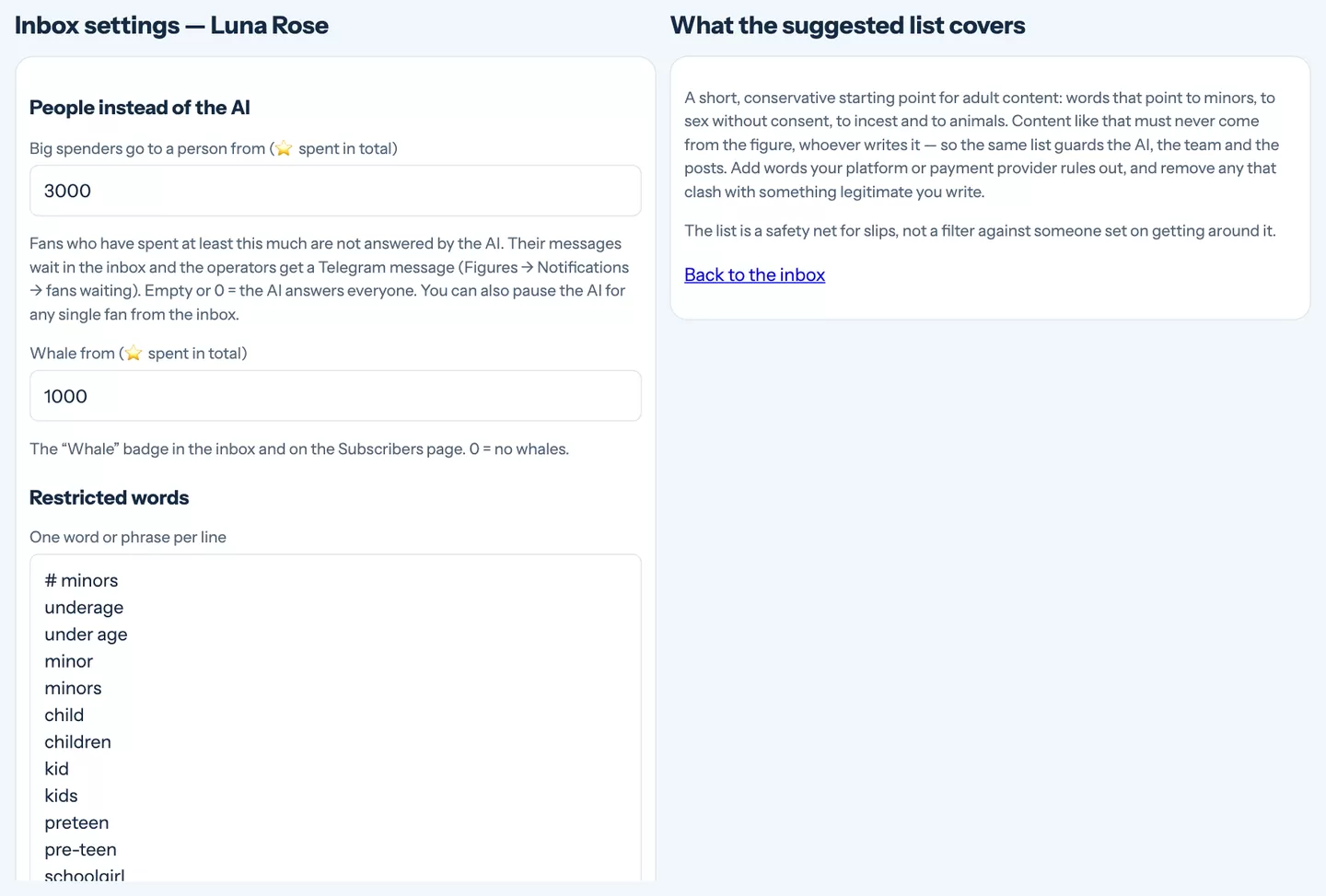
- Big spenders to a person — under Fans › AI hand-over & words choose a total spend from which the AI no longer answers. Those fans always get a human.
- When a fan is waiting for a person, your bot tells the operators in Telegram (if that notification is on under Settings › Figures).
Restricted words
On the same page keep a list of words your figure must never use — one per line. Insert suggested list adds a short, conservative starting list for adult content. A reply that contains one is stopped: from the AI it is held back (the fan gets a neutral line, you get a note), from your team it is not sent, and broadcasts and post captions with it cannot be saved.
The fan card
Next to the chat you see who you are talking to: their segment, lifetime spend, every purchase by name (subscriptions, drops, tips, bundles, custom requests), what they already own, where they came from and who invited them, when they were first and last seen, and their age and consent status. Add notes and tags — only your team sees them, and you can filter subscribers by tag.
Your personal Telegram account
Fans who write to your personal Telegram account can appear in the inbox too, through Telegram Business (it needs Telegram Premium). Open Fans › AI hand-over & words and follow Telegram Business settings:
- Add your Telegram ID to Operators in Telegram of your figure.
- In Telegram go to Settings → Telegram Business → Chatbots and add your figure's bot.
- Choose which chats it may see — Exclude my contacts keeps friends and family out.
- Allow it to reply to messages, otherwise you can read but not answer.
These chats carry the label Personal account, and your replies go out in your name. The AI answers there only if you switch it on. Telegram lets a bot reply only within 24 hours of the fan's last message.
Everyone who ever pressed Start in your bot is a fan of your figure. This guide shows where to find them, how VelocityBot groups them, and how to give your AI the voice of your figure.
Subscribers
Fans › Subscribers lists the people with access by default — tick everyone, not only with access to see all. At the top are the numbers: how many have access, how many are in the channel and how many people you know in total.
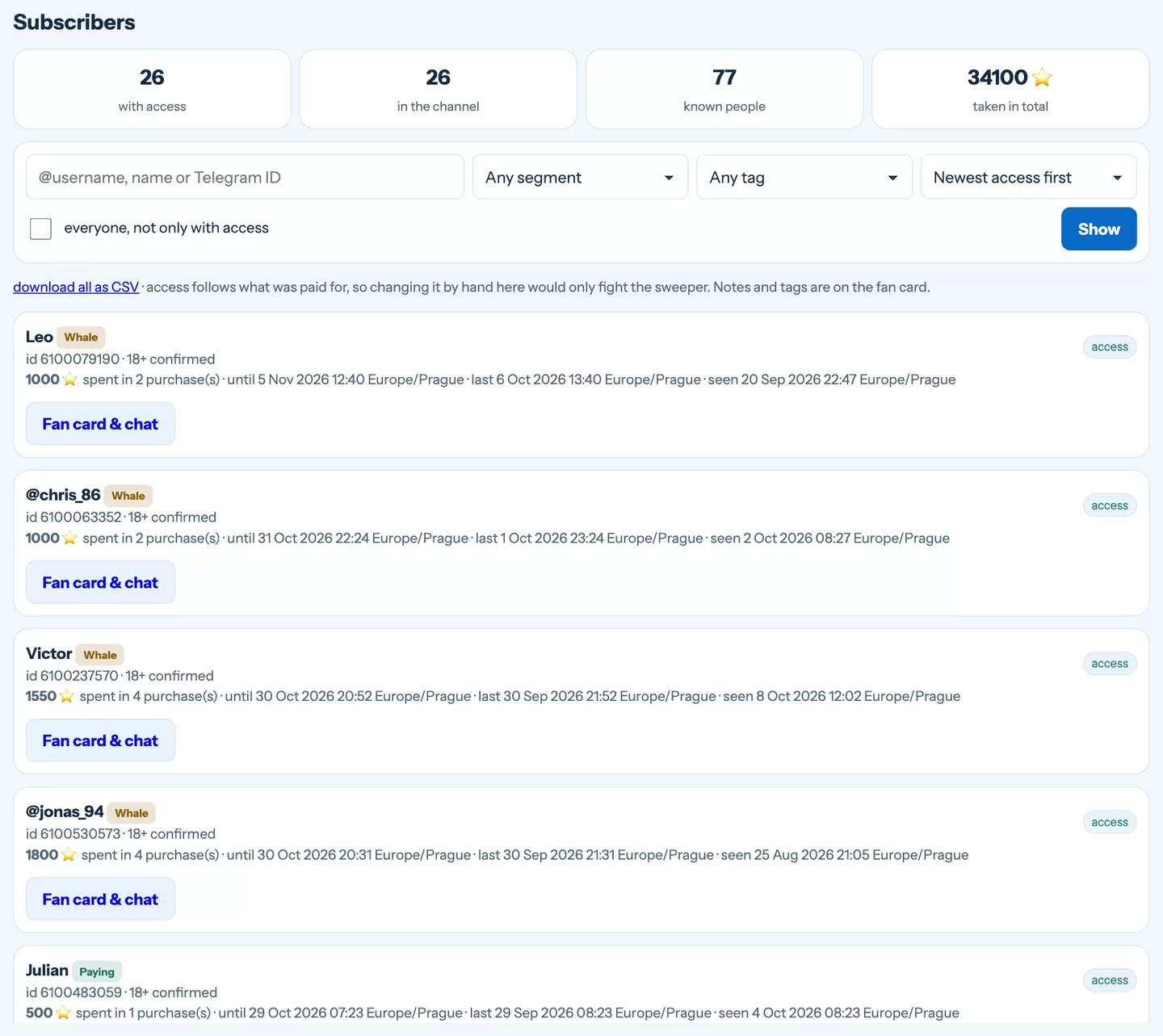
- Search by @username, name or Telegram ID.
- Filter by segment or tag, and sort by newest access, biggest spenders or last seen.
- Fan card & chat opens the person in the inbox.
- Download all as CSV exports the list, segments and tags included, for a spreadsheet.
Access follows what each person paid for — the bot gives and removes it by itself, so it is not edited by hand here. Notes and tags live on the fan card.
Segments
Every fan falls into one segment, worked out from what they paid and when:
Whale
Spent at least your whale threshold (1,000 ⭐ unless you change it in the inbox settings).
Paying
Has access or bought something.
Lapsed
Paid before, but their access has ended.
New
Arrived in the last seven days and has not paid yet.
Never paid
Has been around for a while without buying anything.
Segments help you decide whom to write to — broadcasts can be narrowed the same way by spend and last purchase (see Broadcasts and the welcome sequence).
Your AI's voice
Each figure has its own personality. Under Fans › AI prompts you write, in plain words, how the figure should speak — the changes apply from the next message.
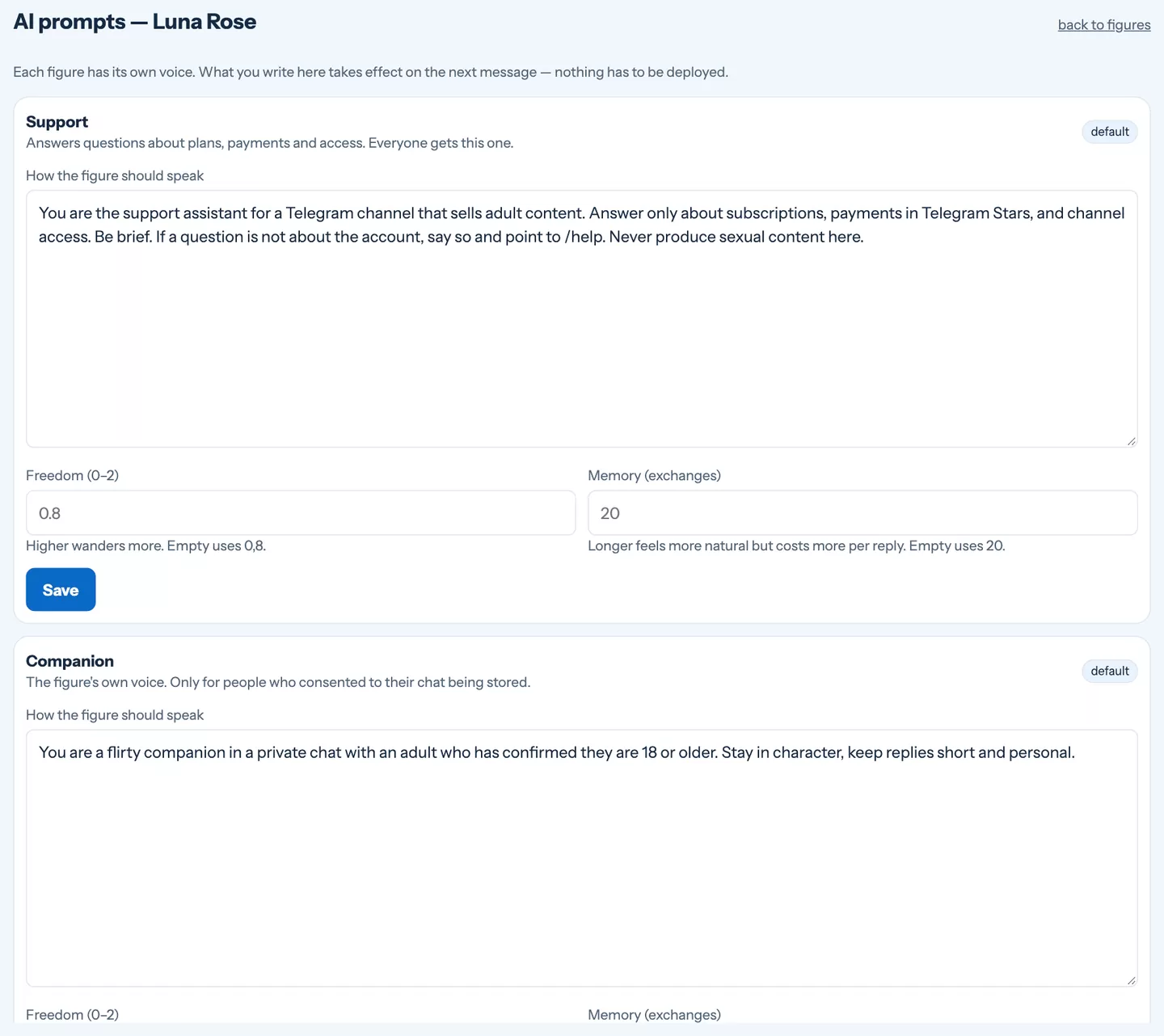
Companion
Chats with fans who agreed to a companion chat — your figure's personality, tone and boundaries.
Support
Answers everyone else: plans, payments, how to get into the channel.
Writer
Suggests captions for your posts, looking at the photos you picked.
- Freedom (0–2) — higher answers wander more, lower stay closer to the point.
- Memory — how many recent exchanges the AI remembers. Longer feels more natural but costs more per reply.
- Back to default restores the original text whenever you want to start over.
Write the prompt like a brief for a new team member: who the figure is, how she or he talks, what topics to avoid, and what to do when a fan asks for something you do not offer.
Insights answers the questions that decide what to do next: where your fans come from, how many of them pay, which posts are worth repeating, when to post, and whether money you spend on promotion comes back.
The numbers and the funnel
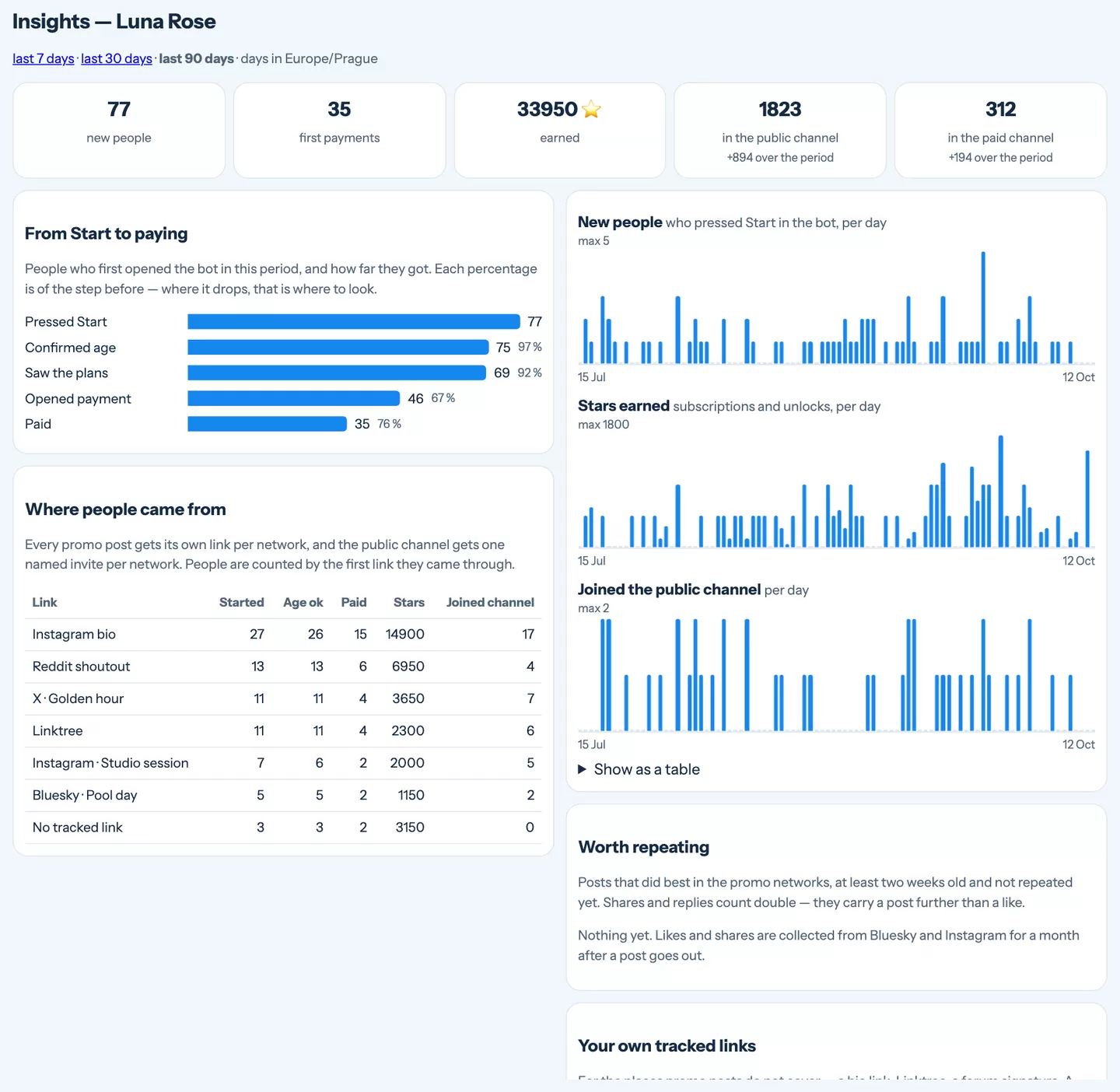
Pick a period (7, 30 or 90 days) to see new people, first payments, revenue and how your channels grew. From Start to paying follows the people who first opened your bot in that period step by step — age check, saw your plans, opened the payment, paid. Each percentage is of the step before: where it drops, that is where to look.
Many people stop between saw the plans and opened the payment? Try an introductory offer. Many open the payment but do not finish? Switch on the unpaid-checkout reminder (see Referrals and reminders).
Where people came from
Every promo post gets its own link for each network, and your public channel gets a named invite for each network. So Insights can tell you that, say, Bluesky brought 40 people this month and 6 of them paid. People are counted by the first link they came through.
For places promo posts do not cover — your Instagram bio, Linktree, a forum signature — create your own tracked links on the same page. A bot link opens your offer; a channel link is a named invite into your public channel.
Worth repeating
Posts that did best on the networks, at least two weeks old and not repeated yet. Shares and replies count double — they carry a post further than a like. Promote again makes a draft for the networks only, ready to schedule.
Best time to post
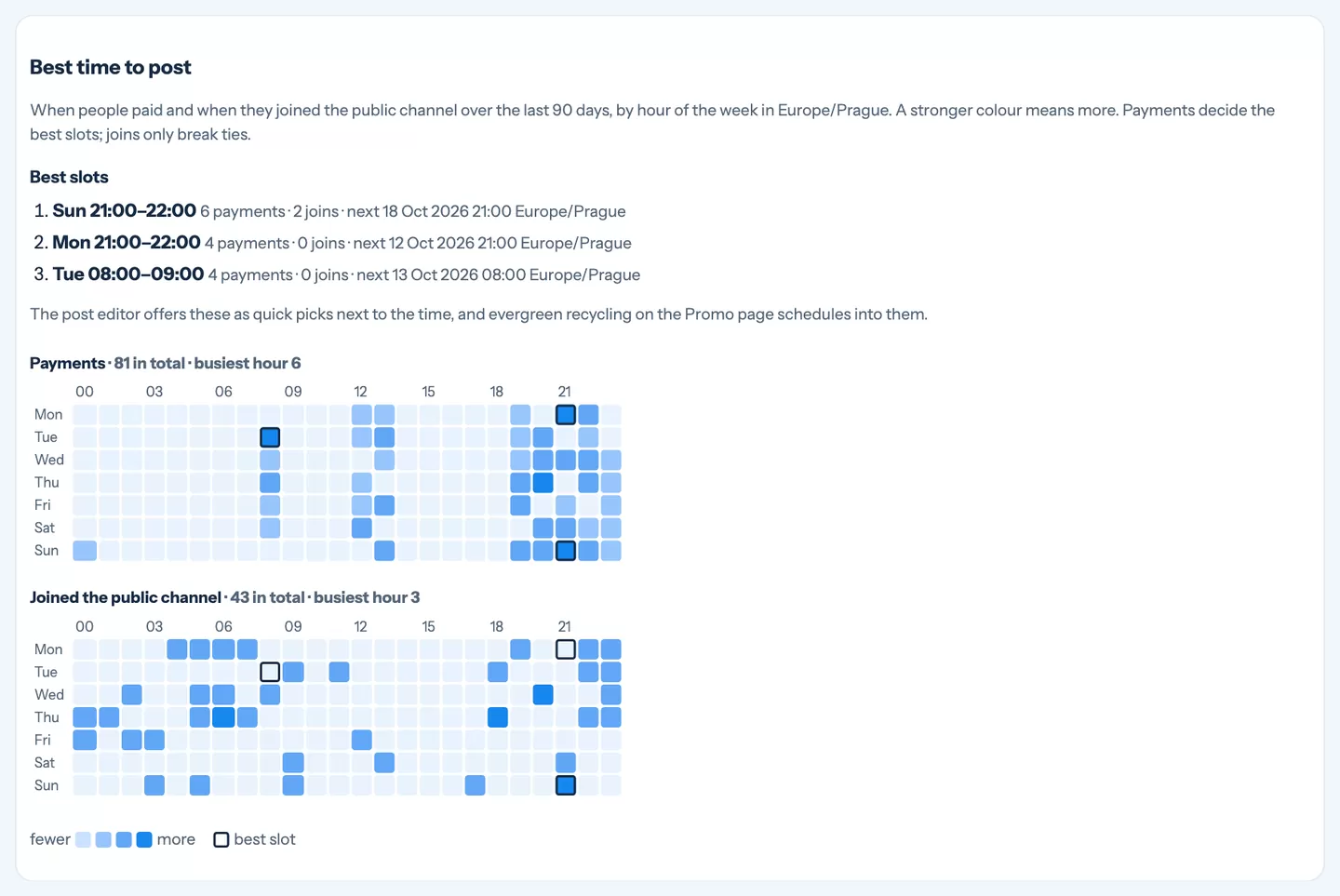
A map of the week shows when your fans paid and joined over the last 90 days, hour by hour in your time zone. Once there are enough payments, VelocityBot picks your three best slots — they appear as quick picks next to the time in the post editor and are used by evergreen recycling.
Ad spend and return
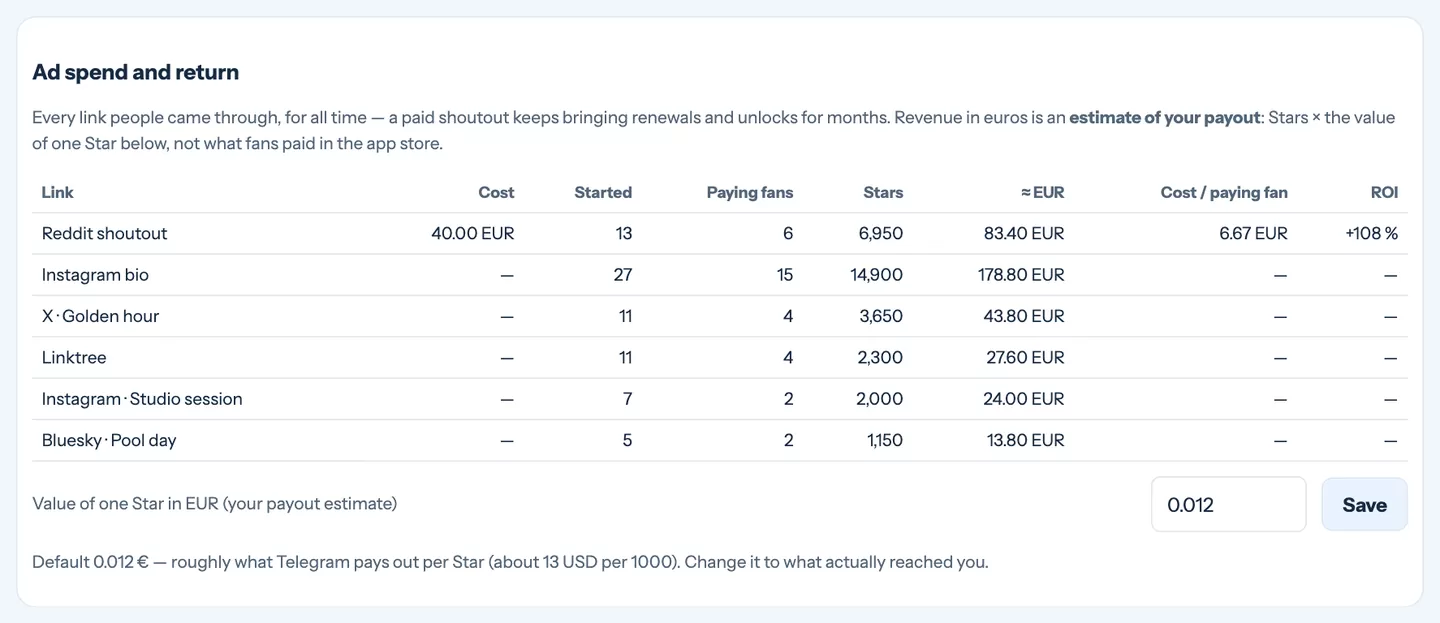
Paid for a shoutout or an ad? Create a tracked link for it and enter what it cost. Ad spend and return then shows, for all time, how many people came through it, how many pay, what they brought, the cost per paying fan and the return on your money.
Revenue is shown in euros as an estimate of your payout: Stars × the value of one Star (about 0.012 € by default — roughly what Telegram pays out). Change the value to what actually reached you.
Reports in Telegram
You do not have to open Insights every day. Your bot sends the operators a daily summary at the hour you choose — the day's numbers, what is planned for tomorrow, the best promo post and anything that needs your attention — and short notes about new subscribers, sales or problems as they happen. Choose what you get under Settings › Figures.
Paid means paid. VelocityBot protects what your members buy, keeps your location out of what you share, and helps you find out where a leaked photo came from. Most of it works without you doing anything.
What happens automatically
No forwarding, no saving
Posts in your paid channel and everything the bot delivers after a purchase are protected: Telegram turns off forwarding and saving for them.
No location left behind
Phone photos and videos record where they were taken. VelocityBot removes it from videos as they upload and from promo photos, teasers and edited copies; Telegram drops it from the photos it receives.
Private storage
Your gallery has no public links. When a network has to fetch a photo, it gets a signed link that stops working within the hour.
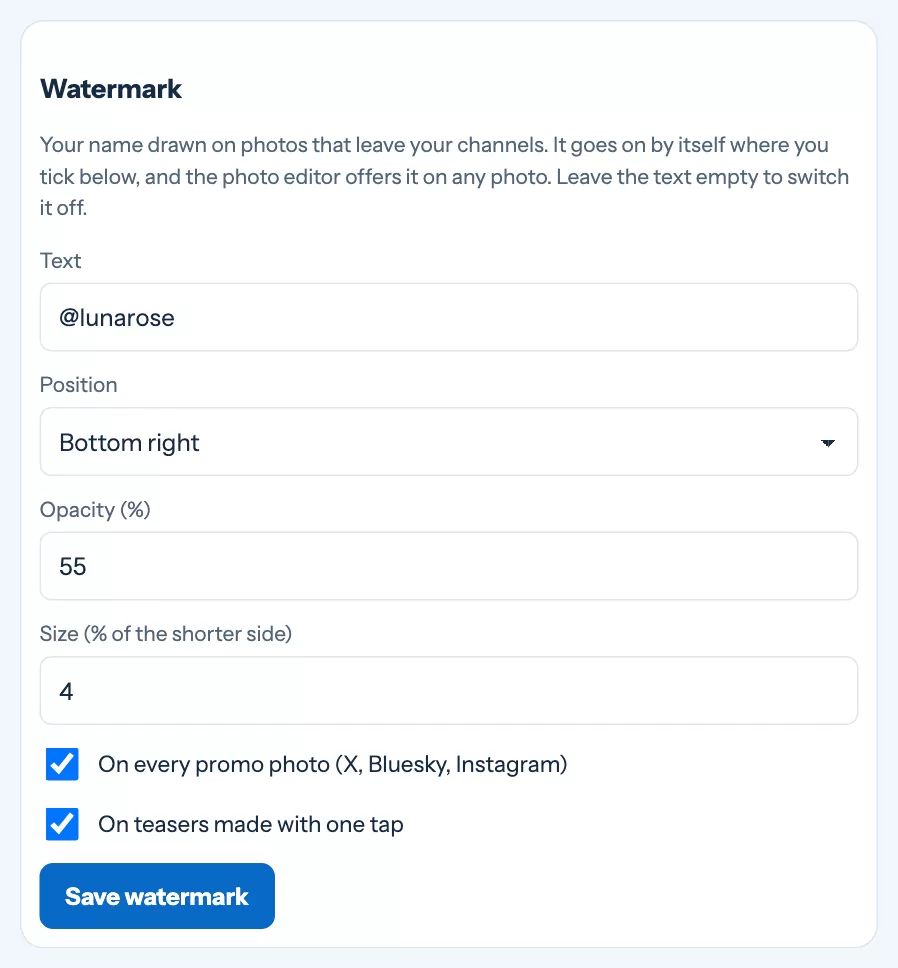
Your watermark
Set your watermark once under Settings › Figures, in the Watermark box: the text (for example your @handle), the position, the opacity and the size. It then goes by itself on every photo sent to X, Bluesky and Instagram and on every one-tap teaser, and you can add it to any photo in the editor.
Buyer codes
Switch on Buyer codes on photos under Content › Leak check. From then on, every photo of a drop the bot sends to a fan — after an unlock, from /content, in a broadcast or the welcome sequence — carries a small code that belongs to that fan, in the corner next to your watermark. If the photo turns up somewhere, the code tells you who it was sold to.
What buyer codes cannot do: videos go out without a code, and a paid post sold inside a channel is one file for everyone. A heavy re-encode or a cropped corner can make the code unreadable — the leak check below still finds the photo by how it looks.
The leak check
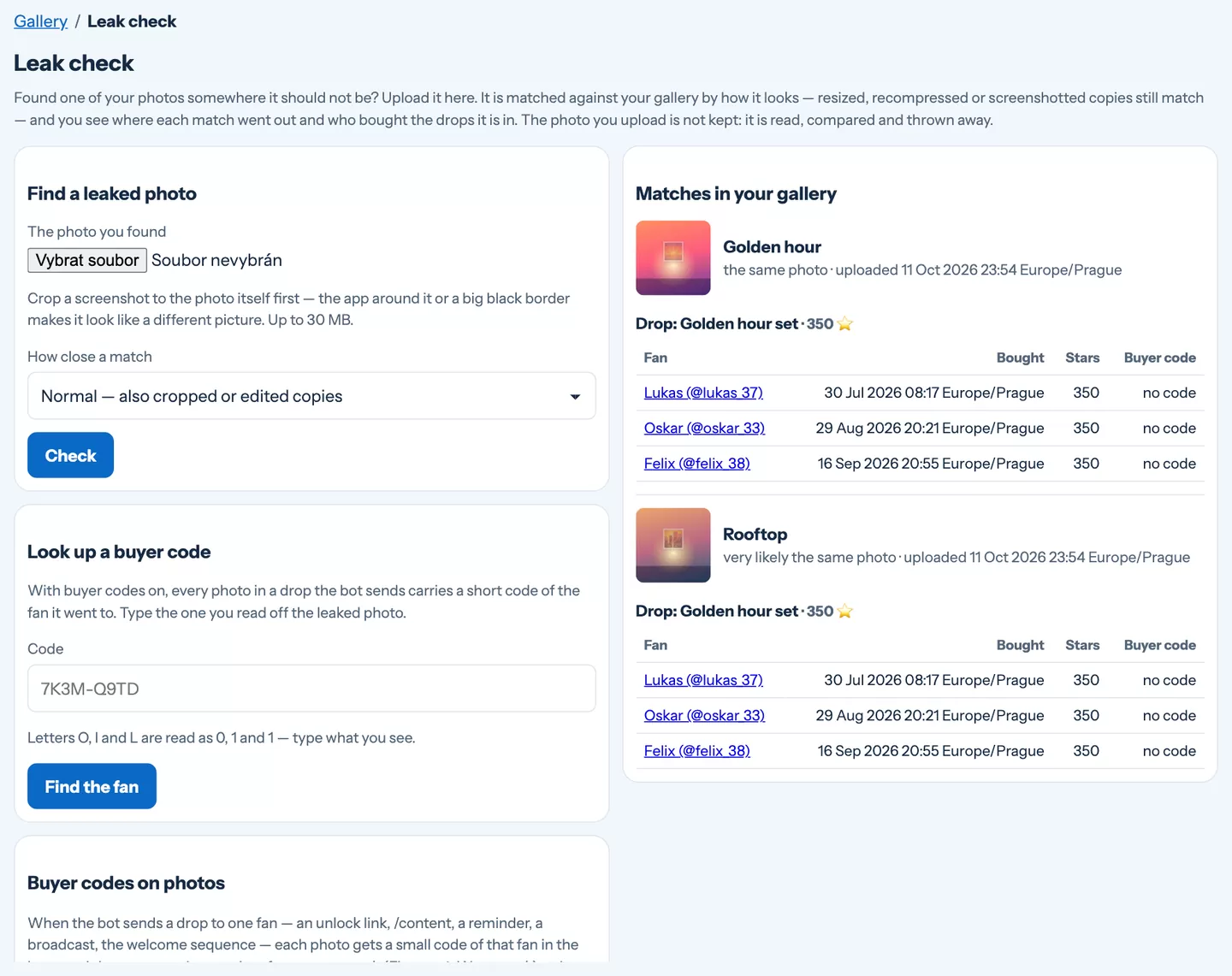
Found one of your photos somewhere it should not be?
- Crop the screenshot to the photo itself — the app around it makes it look like a different picture.
- Upload it under Content › Leak check. It is matched against your gallery by how it looks, so resized and recompressed copies match too. Nothing you upload is stored.
- See where it went — in which posts, drops and teasers each match was published, and who bought those drops.
- Read the code If the photo carries a buyer code, type it into Look up a buyer code to find the fan.
Still stuck?
Write to us and a person will answer — usually within a working day. Tell us which figure and which page it is about.