Gallery and photo editor
Upload and organise photos and videos, crop them for each network, hide what stays paid and add your watermark.
The gallery under Content › Gallery holds every photo, video and file you want to publish or sell. You upload once and use the same item in as many posts, drops and messages as you like.
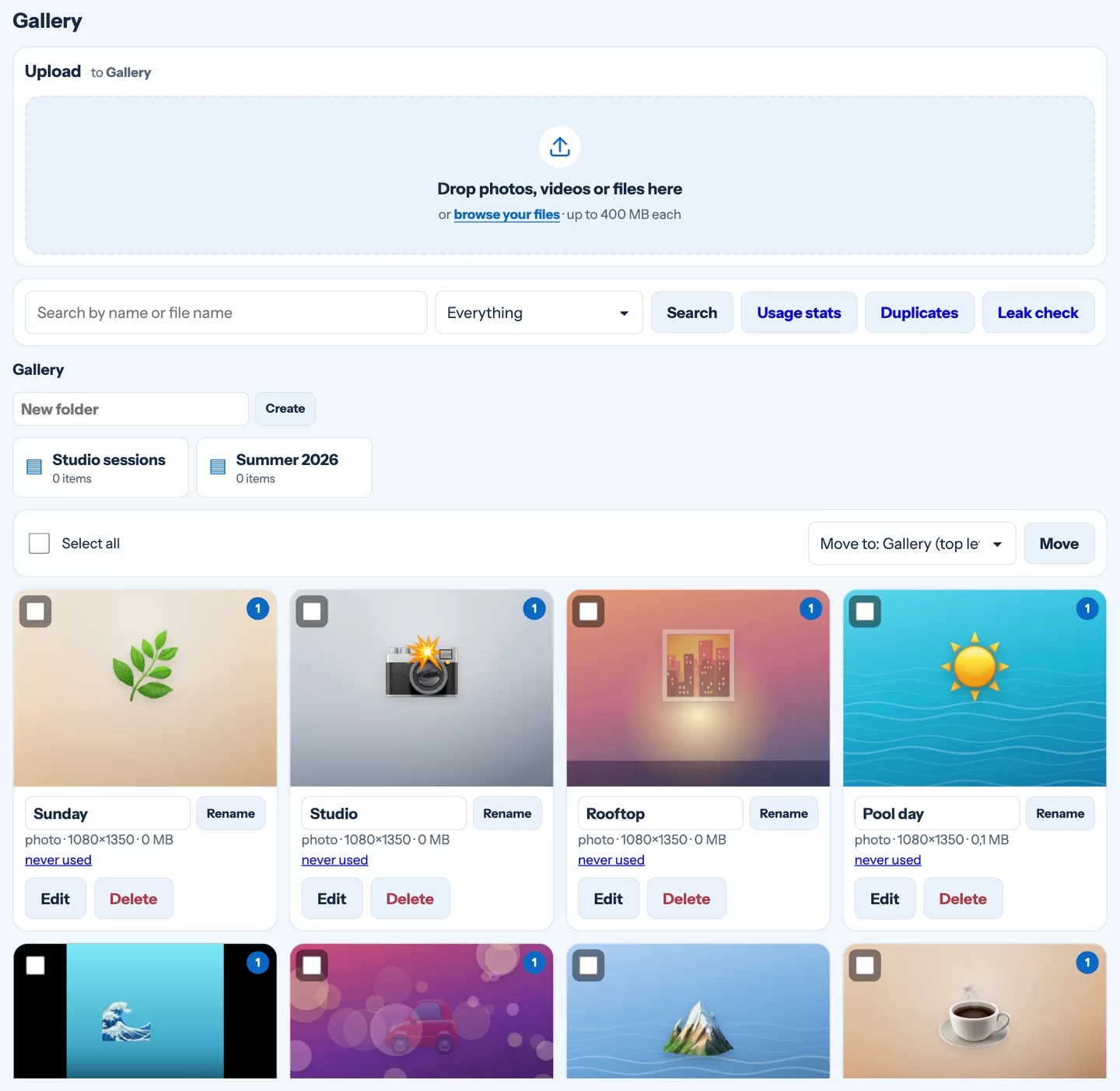
Upload
Drag files onto the upload area, or tap browse your files. Each file can be up to 400 MB, and you can upload many at once — you see the progress of each one.
- Photos straight from an iPhone (HEIC) work as they are.
- Videos should be MP4 (a MOV from an iPhone works too). VelocityBot removes the location from videos as they upload.
- Files — a PDF, a ZIP, audio — can be shared in the channel for download.
Keep it tidy
- Folders — create a folder, open it and upload into it, or select items with Select to move and move them anywhere. Deleting a folder never deletes photos: they move up a level.
- Search looks through the whole gallery by name or original file name.
- Duplicates finds the same photo uploaded twice — even a resized copy sent through a messenger — and merges it into one, keeping the posts that use it.
- Usage stats shows which photos went out most and which you have never used.
The small badge on a tile (3×, +1) tells you how many times the photo already went out and in how many scheduled posts it waits. Handy so the same photo does not keep coming back.
Edit a photo
Press Edit on a photo in the gallery, or ✎ on a selected photo in the post editor. The original always stays in the gallery — every edit is saved as a new copy next to it.
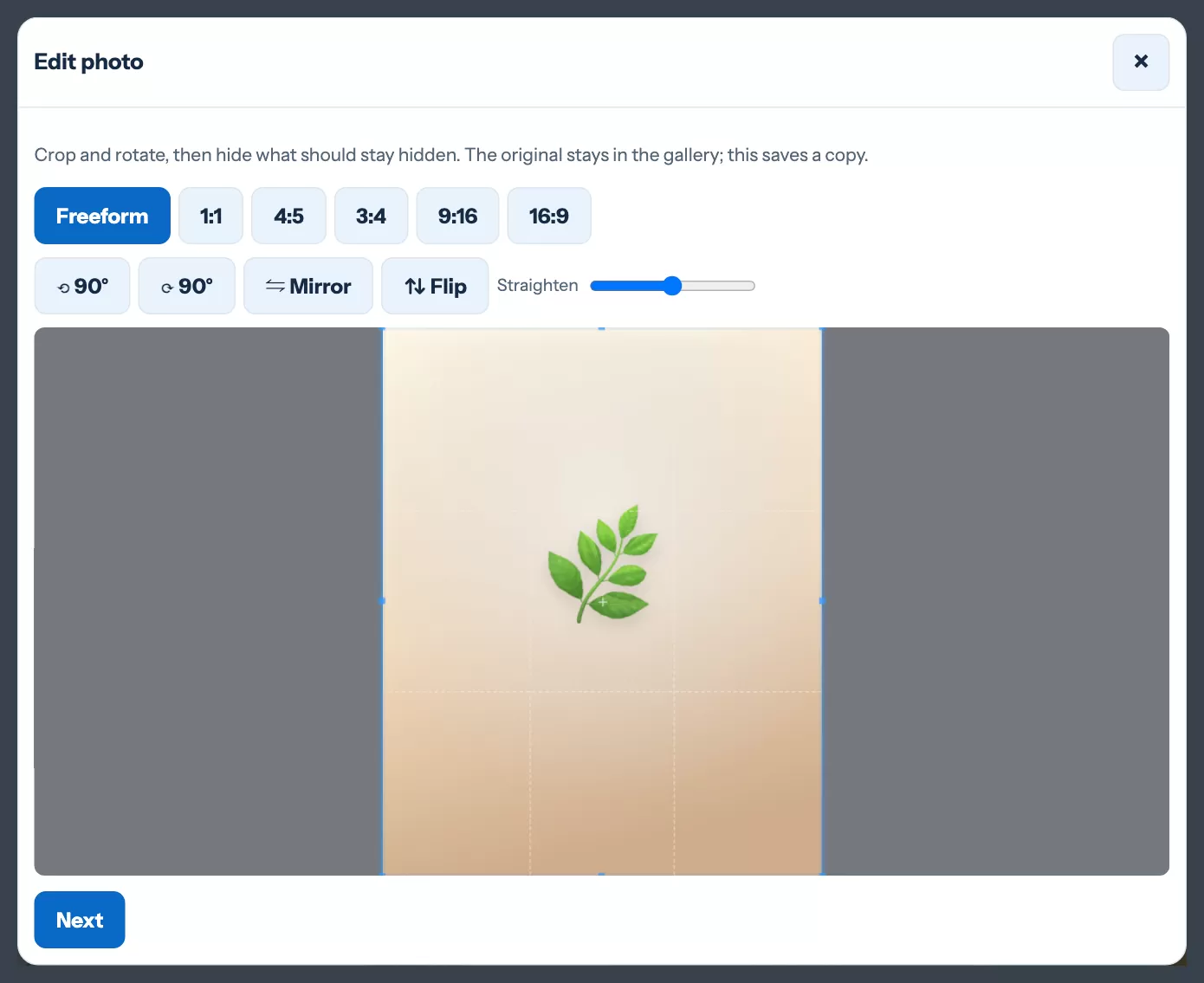
Frame
Crop freely or to 1:1, 4:5, 3:4, 9:16 or 16:9. Rotate, mirror and straighten the horizon.
Hide
Draw a box to blur, pixelate or cover with a black bar. Tap to place an emoji or text.
Brand
Put your watermark on the photo. Its text, position and size are set once under Settings › Figures.
A crop for each network
In the post editor, ✎ on a photo also offers Crop for X, Bluesky, Instagram…: the same photo gets its own crop for each network. Instagram only accepts shapes between 4:5 and 1.91:1 — a tall phone photo is fitted for it automatically if you do not crop it yourself.
Video cover
For a video, Pick cover lets you slide to the frame you want. It becomes the image members see before they press play — and, for a paid video, before they decide to unlock it.
A teaser in one tap
In a paid post, under the teaser choice, press Make teaser: blur first photo or pixelate first photo. VelocityBot makes a free preview from your first photo, saves it to the gallery and selects it. The blur is strong enough that nothing can be recovered from it.
Still stuck?
Write to us and a person will answer — usually within a working day. Tell us which figure and which page it is about.