Posts and the calendar
Write a post once, schedule it for your channels, sell it as paid content and plan whole series on the calendar.
A post is what goes into your channel: text, photos, a video or a file — free for everyone or paid. You write it once, pick a time, and VelocityBot publishes it for you. The same post can go to X, Bluesky and Instagram as well (see X, Bluesky and Instagram).
Write a new post
Open Posts. The editor is on the right, your queue on the left.
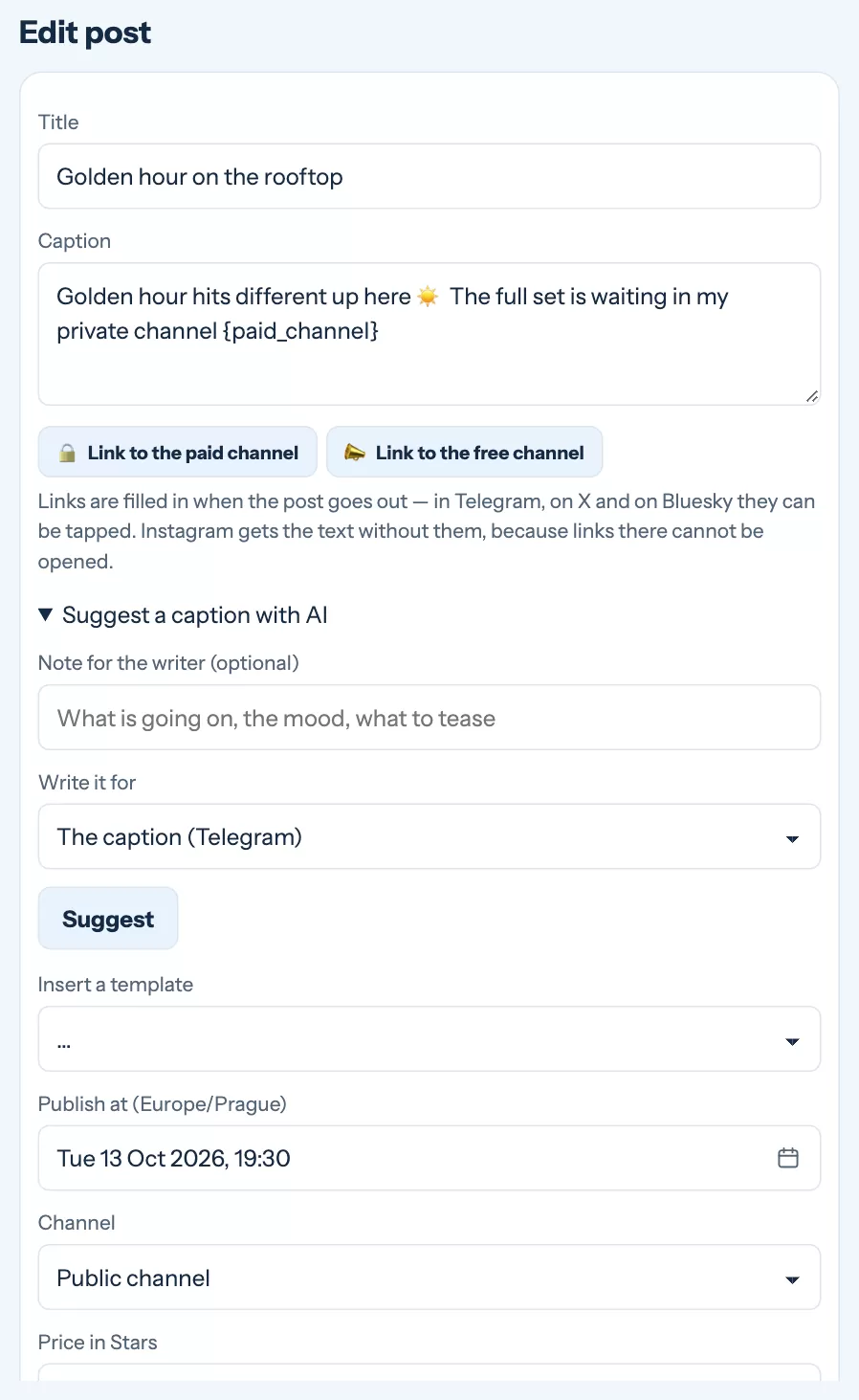
- Title Only you see it — it is how you find the post in the list and on the calendar.
- Caption The text of the post. You can use bold, italics and links. The buttons under the field insert a link to your paid or free channel — the right address is filled in when the post goes out.
- Media Tap photos and videos in the gallery picker. The order follows your taps; the ✎ on a selected tile opens the photo editor (crop, blur, cover).
- Publish at Date and time in your figure's time zone. The quick buttons underneath are your best times, learnt from when your fans actually buy and join.
- Channel The public channel, the paid channel, or no Telegram if the post is only for social networks.
- Schedule or Save as draft A draft is never published until you schedule it.
Let the AI suggest a caption
Open Suggest a caption with AI, add a note if you like (the mood, what to tease) and press Suggest. The AI looks at the photos you selected and offers three captions — for your channel or for one of the networks. Nothing is replaced until you tap a suggestion.
Templates save typing. Text you send again and again — an invitation, a sign-off — can be saved under Content › Templates and inserted into any caption.
Paid posts
Enter a price in Stars and the post becomes paid. Choose how the payment works:
Free teaser + unlock in the bot (recommended)
The channel gets a free preview with a button. The bot sends the paid photos in a private chat after payment. You see who bought it and the Stars go to your bot.
Paid media straight in the channel
One tap shorter for the buyer, but Telegram does not tell the bot about these purchases — the sale will not appear in your reports.
For the teaser, pick a photo — or press Make teaser: blur first photo and VelocityBot creates a blurred preview for you. Next to the price you also see which price bands earned you the most so far.
Preview and test
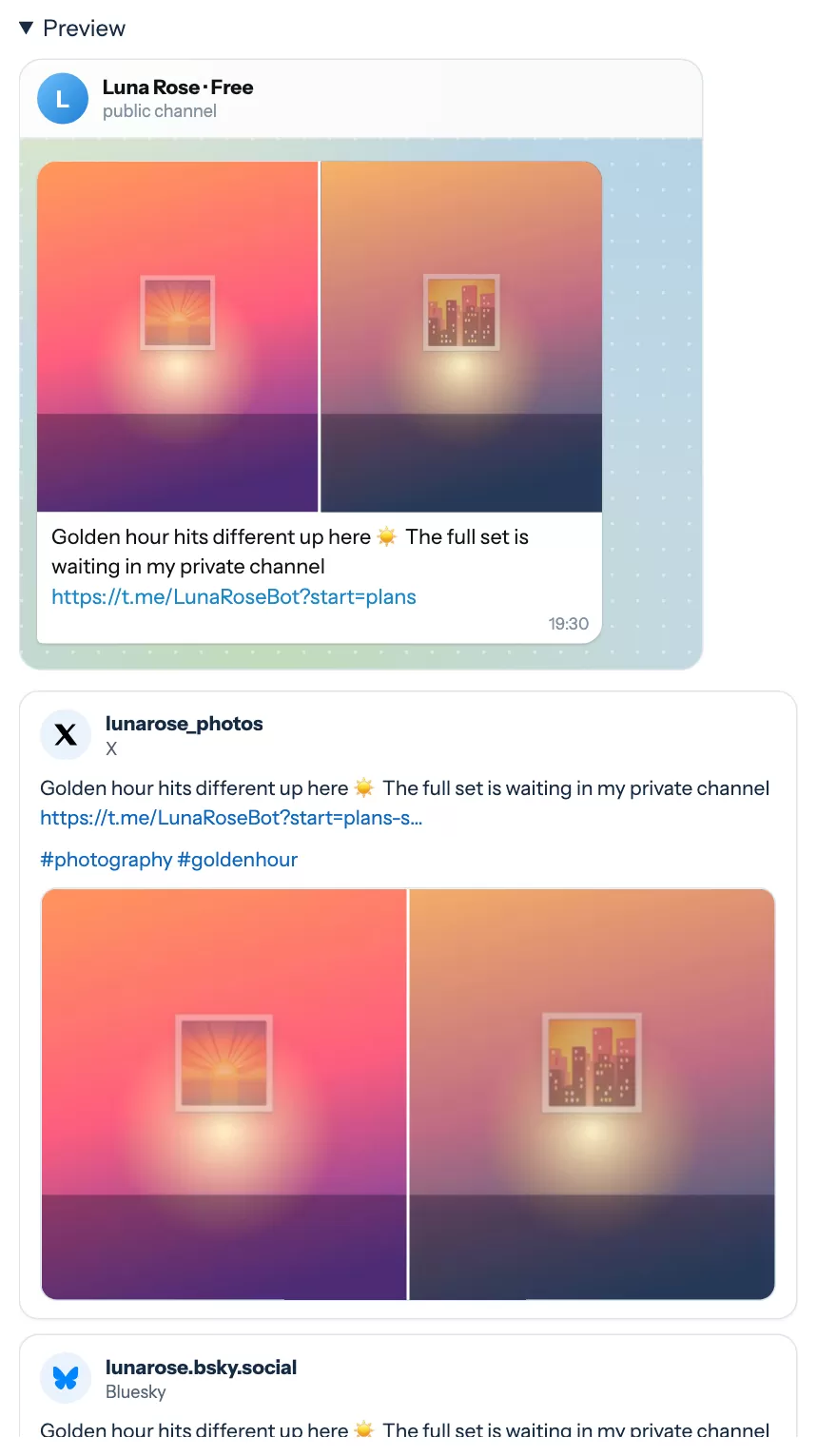
Open Preview under the form to see the post as a message in your channel, with the bot's buttons, and as a card for each network. After saving, Send test on the post's card sends it to you in Telegram.
Your queue
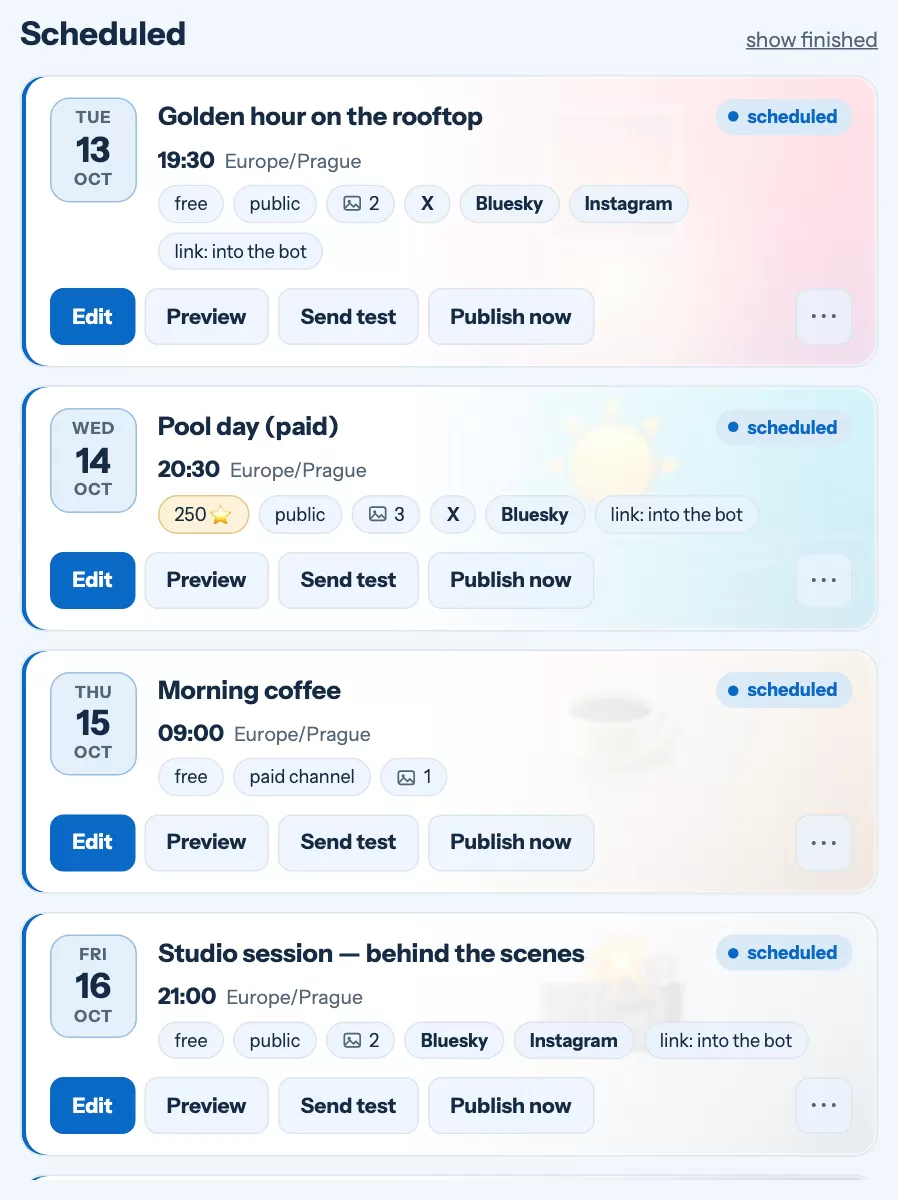
The list shows what is coming, as cards with the date, the channel, the networks and the state. Edit, Preview, Send test and Publish now are right on the card; copying, promoting again and deleting are under ⋯. Show finished lists what already went out, with links to the published posts.
The calendar
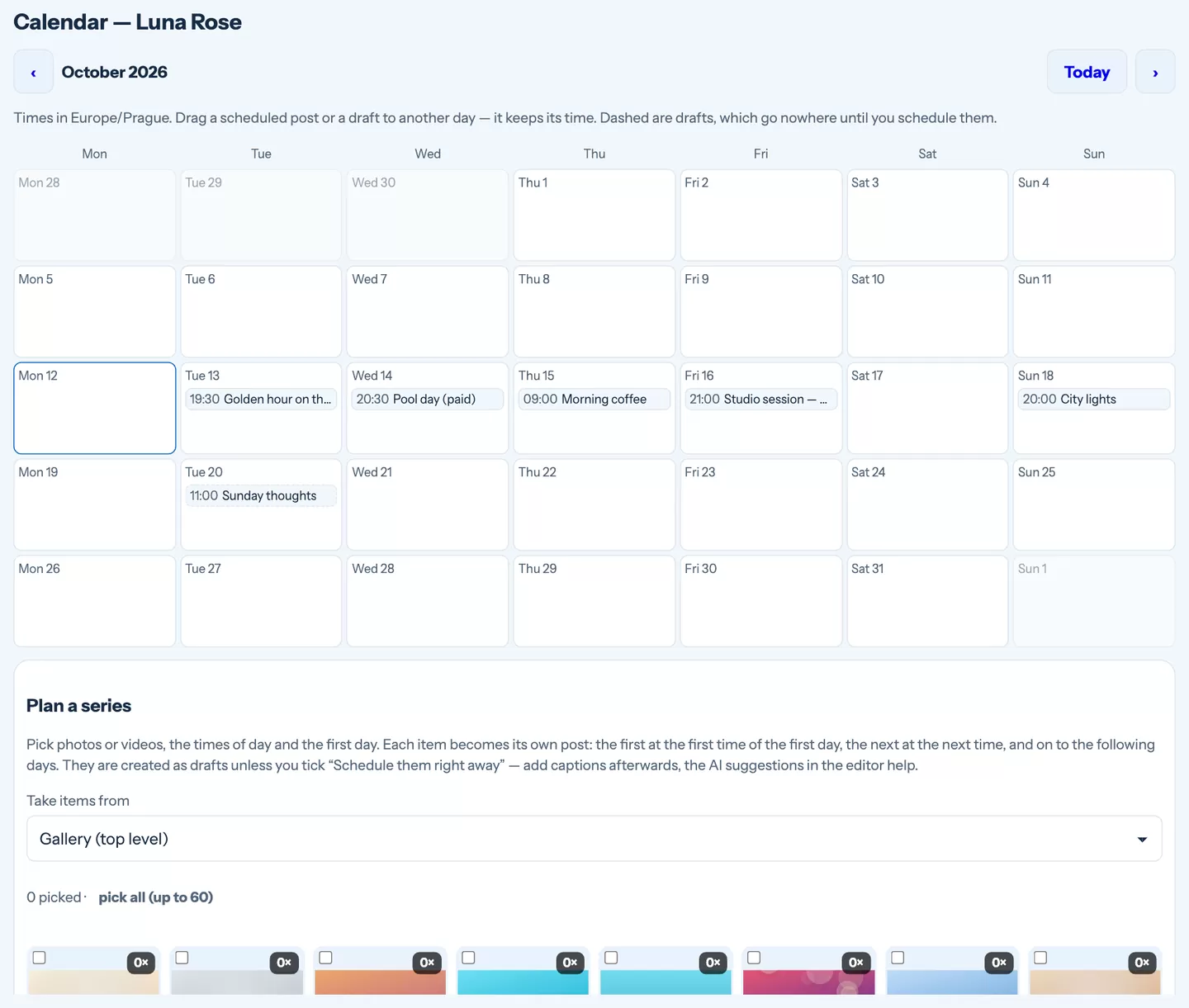
Content › Calendar shows the whole month. Drag a post or a draft to another day and it keeps its time; drafts are dashed. Plan a series turns photos or videos from a folder into separate posts: pick the items, the first day and the times of day (your best times are filled in), and each item takes the next free time. The series is saved as drafts — add the captions, then schedule — or tick Schedule them right away.
Something went wrong? If Telegram or a network refuses a post, VelocityBot tries again and tells you in Telegram if it gives up. The card shows what failed, and under ⋯ you can try again or stop sending to that network.
Still stuck?
Write to us and a person will answer — usually within a working day. Tell us which figure and which page it is about.